Estimates and quotes
What your client sees when you send a quote
The client's side of the quote link: review, policy, signing, the deposit step, and the read-only job page you can send afterward.
When you send a quote, your client gets an email with a View estimate button. It opens a page with your logo and brand color. They read, accept, sign. You get the signed PDF in chat.
The steps your client goes through
- ReviewLines, total, schedule
- Your policyScroll to the end, accept
- SignTyped name and drawn signature
- DepositZelle or check instructions
1. Review. The client sees the lines, the total, any optional or "to be determined" sections, the allowance explainer, your notes, the payment schedule, how to pay, and the dates. A Download quote (PDF) link gives them the same PDF you got.
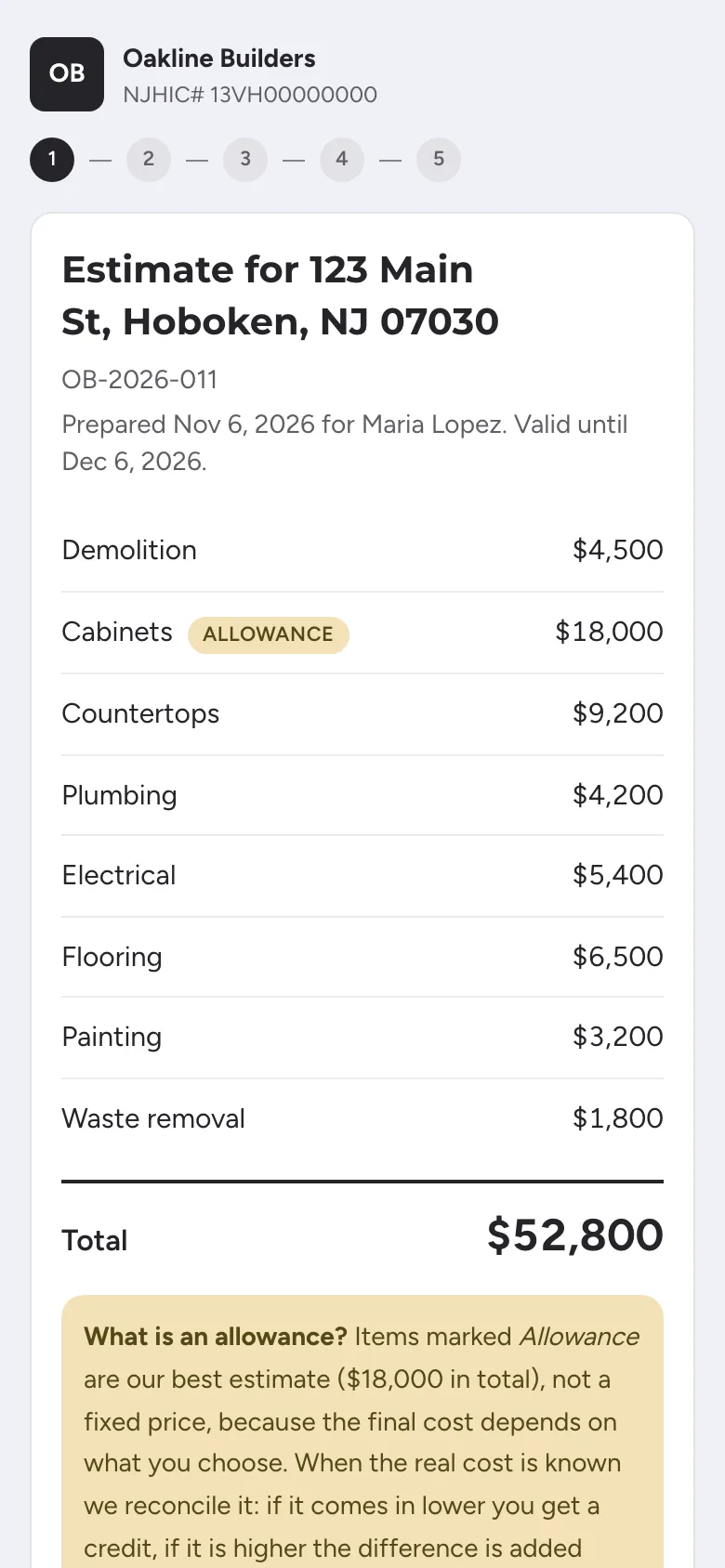
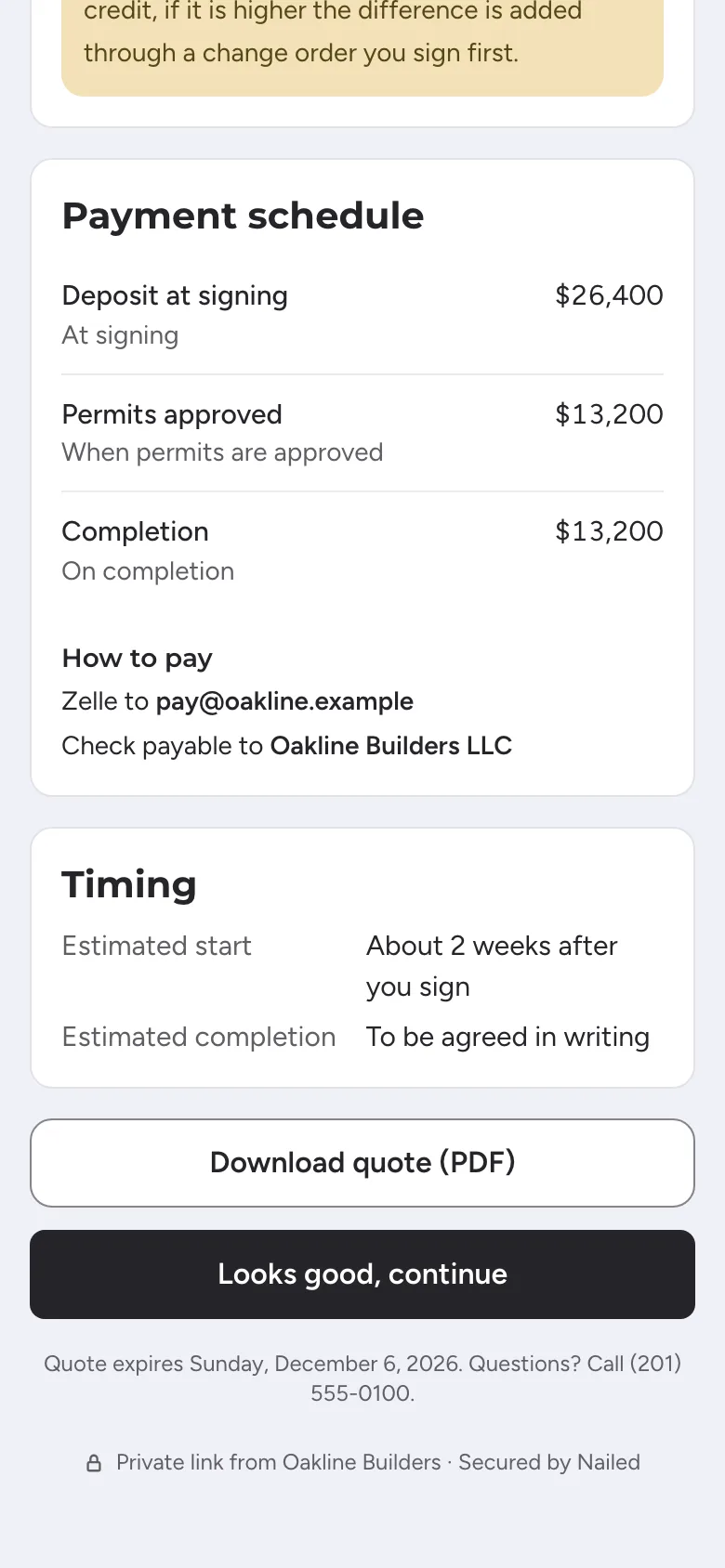
2. Your policy. They scroll through your policy to the end and tick one accept box. They can't tick it before they reach the bottom. You can change the text, see quote branding and terms.
3. State notice. In states that require a right-to-cancel notice, there is an extra step with that notice. In other states this step does not appear.
4. Text consent. An optional box lets them agree to reminders and updates by text. They can skip it.
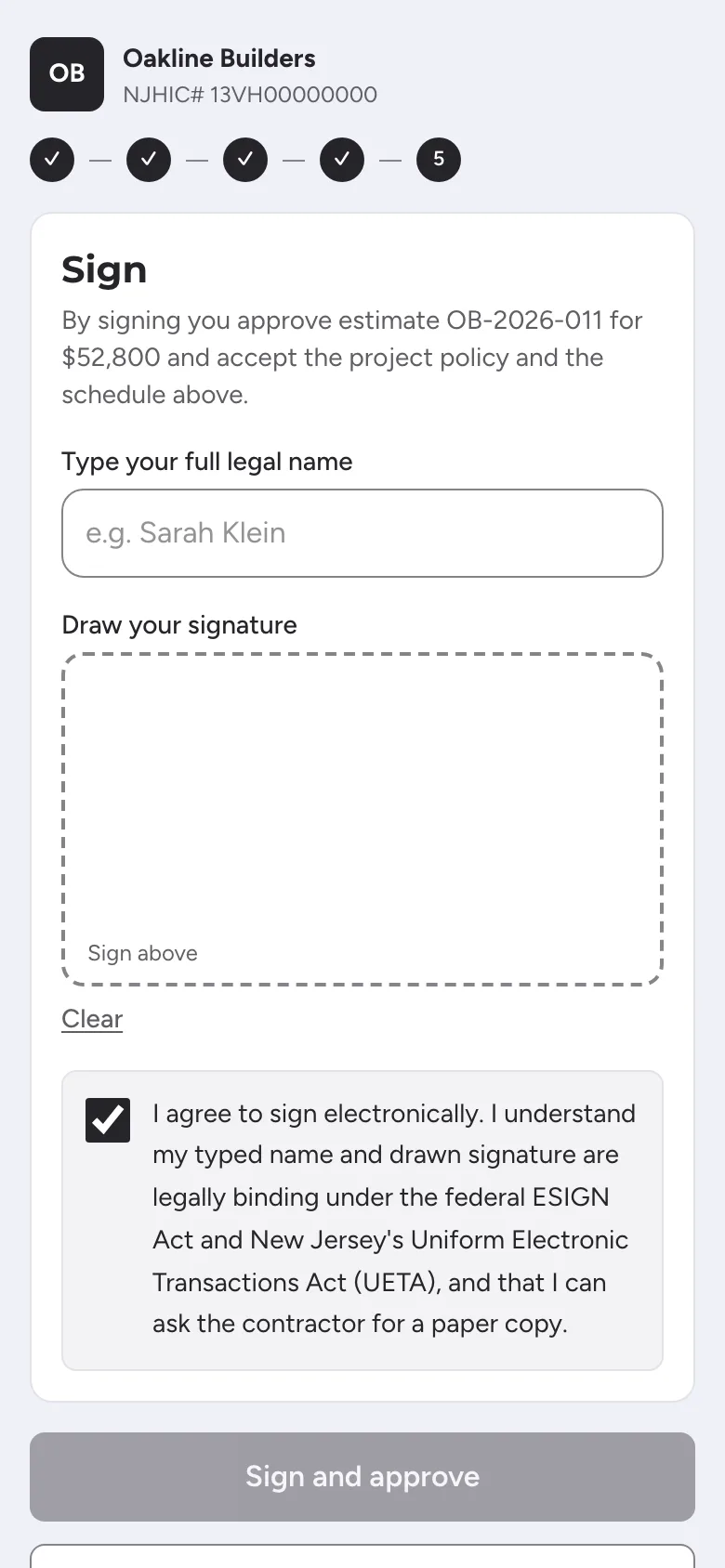
5. Sign. They type their full legal name, draw their signature with a finger or mouse, and tick the e-sign consent box. Then they tap Sign and approve.
After they sign
The screen says Signed and offers the signed copy to download. The same PDF goes to their email.
If a deposit is due, the next screen says "Next step: your deposit" with the amount and your Zelle and check instructions. If you already logged the deposit, it says "Deposit received". There is no card payment on the page.
If the client's state has a cancellation window, the page shows the date it ends.
You get a chat message with the signed PDF attached.
Today
When the link does not work
| What the client sees | Why |
|---|---|
| "This quote expired on" a date | The quote's valid date has passed. They can't continue to sign. |
| "This link has expired" | The link itself is too old. Send a new one. |
| "This quote was updated" | You sent a newer version. They need the latest link in their email. |
| "This quote was just updated. Please look it over and sign again." | You sent a newer version while their page was open. |
| "This quote is no longer available" | You pulled the quote back. |
| "This link is no longer active" | You made a new link, or the job was cancelled. |
Send a fresh version and the new link works. The old one stops.
The client job page
Once a job has a quote, you can send your client a read-only page for the job. It stays current: they open the same link any time.
It shows the quote price, signed change orders, payments received, the balance, the next payment, and documents (the signed contract, a payments summary). It never shows your costs, expenses, vendors, profit or notes. Nothing reaches your client until you send the link.
Things you can say
- send Maria her job page
- send me the Lopez page
The first one emails the client after you confirm the card. The second gives you the link, so you can look first or text it yourself.
Choose what it shows
Set the default under DashboardSettingsClient job page. Tick Job pages on, then pick Money, Change orders, Documents and Show my phone number. Tap Save.
For one job, open it and find the Client job page card. Pick Use my company default, Choose what this job shows or Page off for this job, then Save.
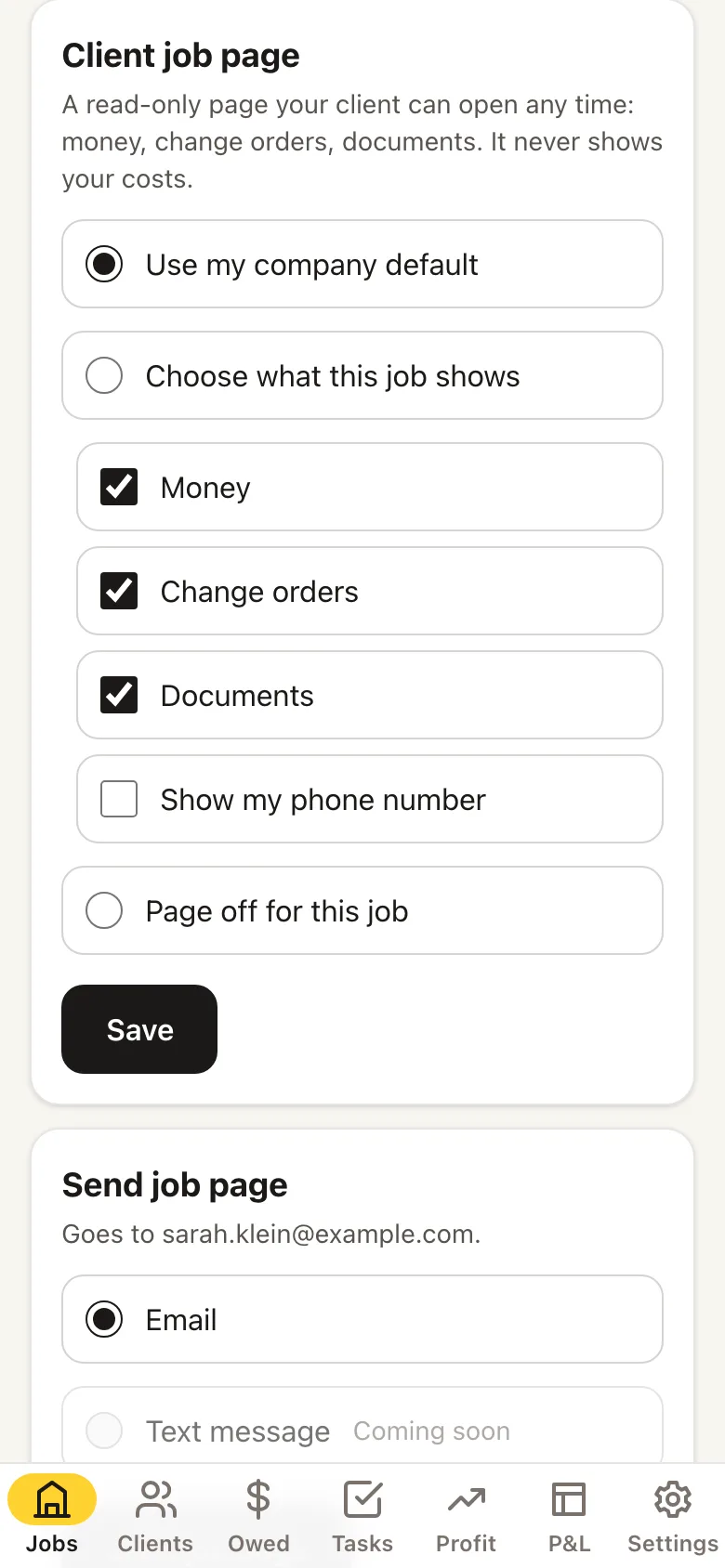
On the same card:
- Send job page emails it. Text message shows "Coming soon".
- Copy link and Preview show you the page. Neither one sends anything.
- Make a new link retires the old link. Anyone with it sees "no longer active".
Common questions
Does my client need an account or an app?
No. They open the link in the email on any phone or computer. They review the quote, sign on the screen, and download the signed copy.
Can my client pay by card on the page?
No. After signing, the page shows your Zelle and check instructions for the deposit. Nailed tracks payments, it does not process them. You log each payment when it arrives.
What if my client opens an old link?
If you sent a newer version, the old link shows "This quote was updated" and tells them to use the latest link in their email. A quote past its valid date, or one you withdrew, shows a notice instead of the signing steps.
Does the client job page show my costs?
Never. It shows the quote price, signed change orders, payments received, the balance, the next payment and documents. Your phone number shows only if you turn it on.
How do I get a client's job page link myself?
Say "send me the Lopez page" in chat, or use Copy link or Preview on the job page in the dashboard. Neither one sends anything to the client.
Did this answer your question?