Clients and jobs
Add call notes, reminders and tasks
Tell Nailed what a client said, save a fact, set a reminder and keep a to-do list. Use chat or the Tasks tab on the dashboard.
Tell Nailed things the way you would tell an office manager. It keeps the notes with the job and reminds you when you ask.
Call notes
After a call, say what the client said. A voice note works too.
Today
Notes show under Notes on the job page, with the date. Notes from a voice note say "from a voice note". They are private. Your client never sees them. If a note is wrong, tap the remove button next to it on the job page. See read a job page.
A recap can hold several things at once. A decision with no price goes into a note. Something to do becomes a task. A change with a price is a change order, see change orders.
Remember a fact
Say remember that Maria's gate code is 4421 or Lowell is 440 Brewers and Nailed keeps it. Later you can ask, for example, "what did Maria say about the vanity". To drop a fact, tell Nailed to forget it.
Tasks and reminders
Things you can say
- remind me to order the vanity Thursday
- remind me to call Daniel tomorrow at 8
- don't forget the permit for 88 Oak Ave
- what's on my list
When the time comes, you get a message from Nailed. On WhatsApp reply with a number, on Telegram tap a button.
Reply with a number:
- Done
- Snooze 1h
- Tomorrow
The Tasks tab
Open DashboardTasks. You see every open task with its reminder time (or "No reminder set") and the job it belongs to. A task that is late shows "Was due" in red.
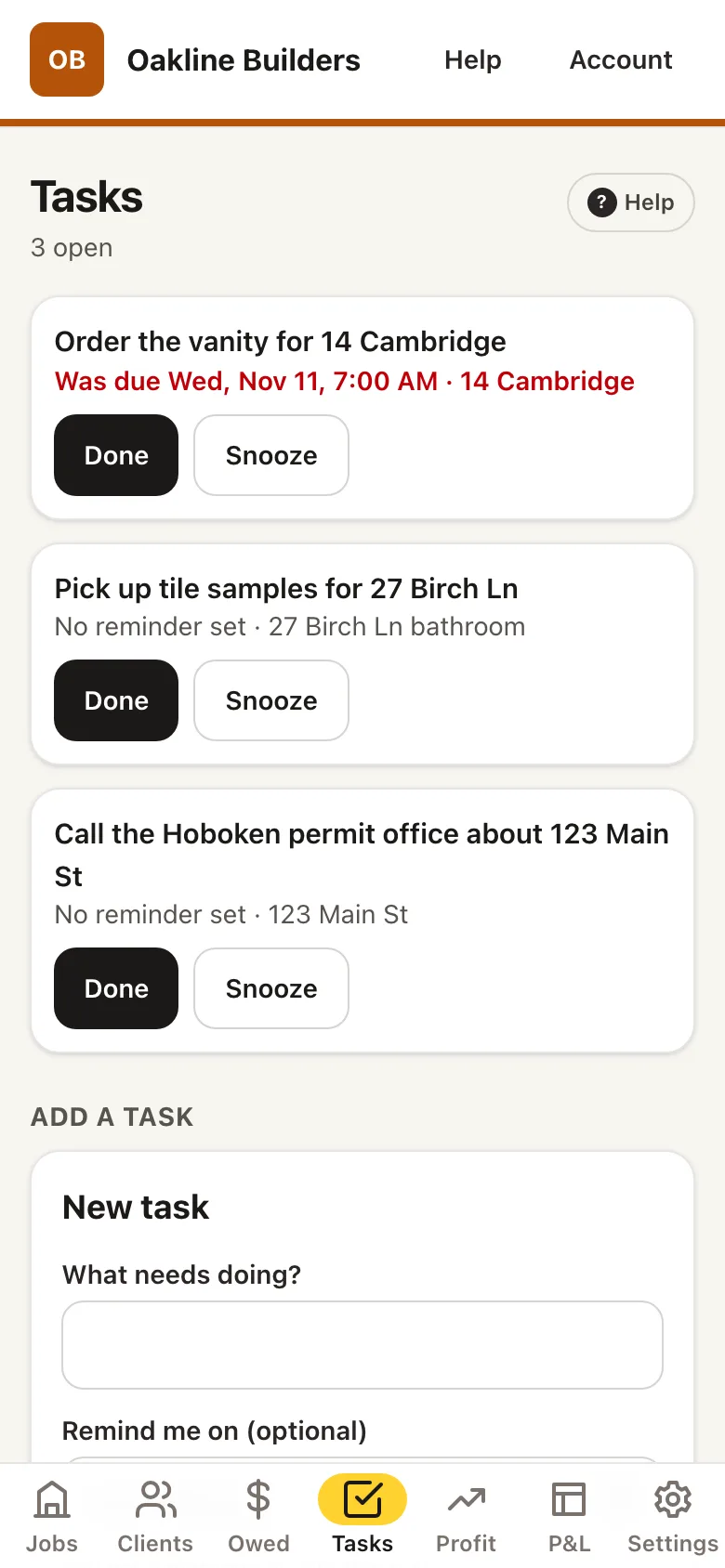
- Done clears it.
- Snooze opens three choices: In 3 hours, Tomorrow 7am and Monday 7am.
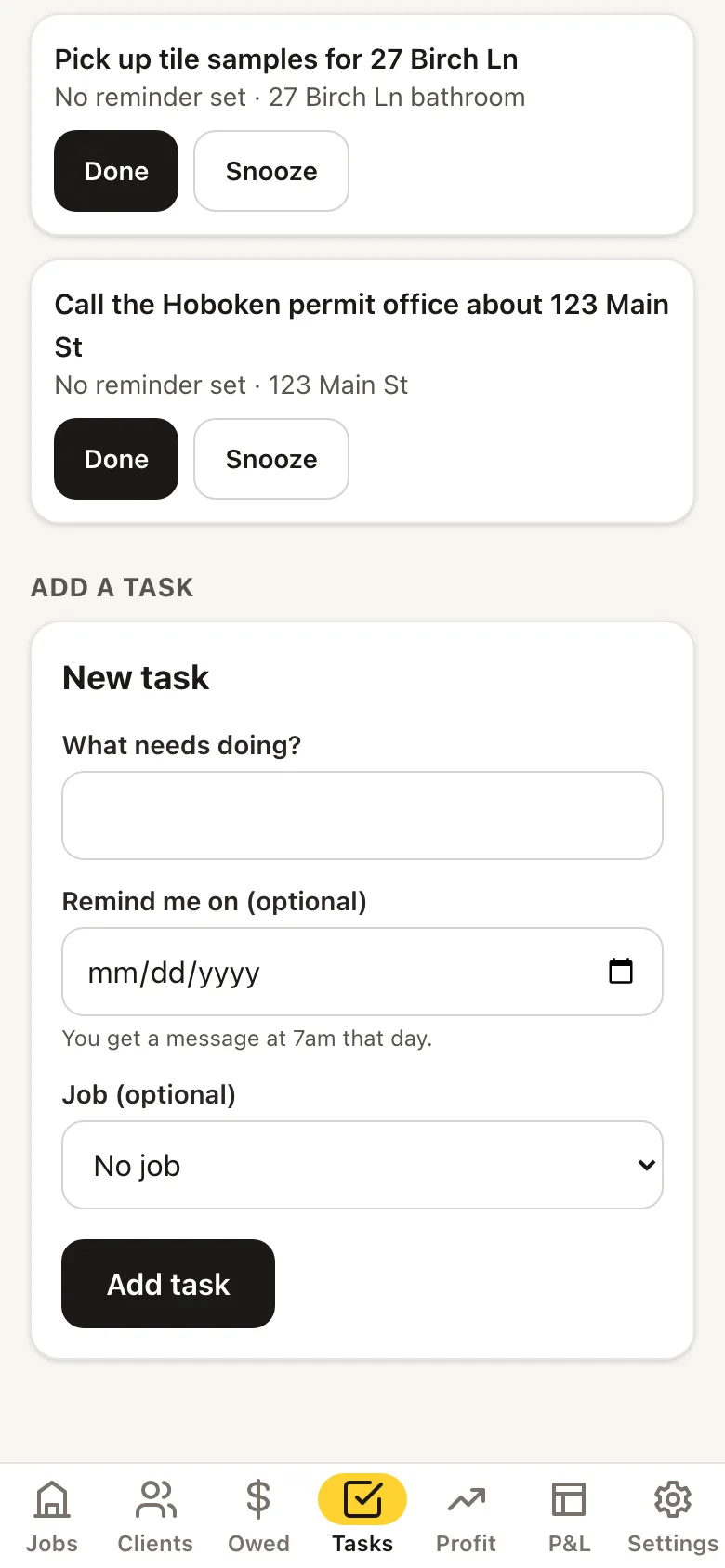
To add one, use the form under Add a task:
Say what needs doing
Type it in What needs doing?
Pick a date, if you want one
Remind me on (optional) takes a date. You get a message at 7am that day.
Link a job, if it helps
Job (optional) starts as "No job".
Add it
Tap Add task. You see "Added."
Tasks belong to you. Only the account owner can add, finish or snooze them on the dashboard.
Common questions
Can my client see my notes?
No. Notes are private. They show under Notes on your job page and never on the page your client opens.
How do I delete a note?
On the job page, under Notes, tap the remove button on the note. You must be the account owner.
What time do I get a reminder if I only give a date?
On the dashboard, a task with a date sends you a message at 7am that day. In chat, say the time you want, like "remind me Thursday at 8".
What do the snooze options do?
In the reminder message you can tap Snooze 1h or Tomorrow. On the Tasks tab, Snooze offers In 3 hours, Tomorrow 7am and Monday 7am.
Can I ask what is on my list?
Yes. Say "what's on my list" and Nailed lists your to-dos and any late client payments.
Did this answer your question?