Clients and jobs
Edit a client's contact info or a job's address and dates
Change a client's phone, email or name by chat or on the dashboard. Change a job's name or address under Edit job & client. Start dates go by chat.
When a client's phone number or email changes, tell Nailed or fix it on the dashboard. A job's name and address are changed on the dashboard.
Change it by chat
Say what changed, the way you would tell your office.
Today
Things you can say
- Sarah's new email is sarah.klein@example.com
- Daniel's cell is 973-555-0188
- start Nov 3
- Maria's last name is Lopez, not Lopes
Replacing a phone number that is already on file may come back as a card to confirm first. "Start Nov 3" sets the estimated start date that prints on the quote. On the dashboard it lives under Estimated dates on the Edit estimate page, not here.
If you have two jobs that could match, Nailed asks which one. If it picked the wrong one, say undo within 30 minutes.
Change it on the dashboard
Open the job
Go to DashboardJobsyour job and tap Edit job & client. Only the account owner sees this button.
Change the fields
Edit what you need. The job fields are Job name, Address, Permits required and Status. The client fields are First name, Last name, Address, Cell phone and Email (optional).
Save
Tap Save. You will see "Saved."
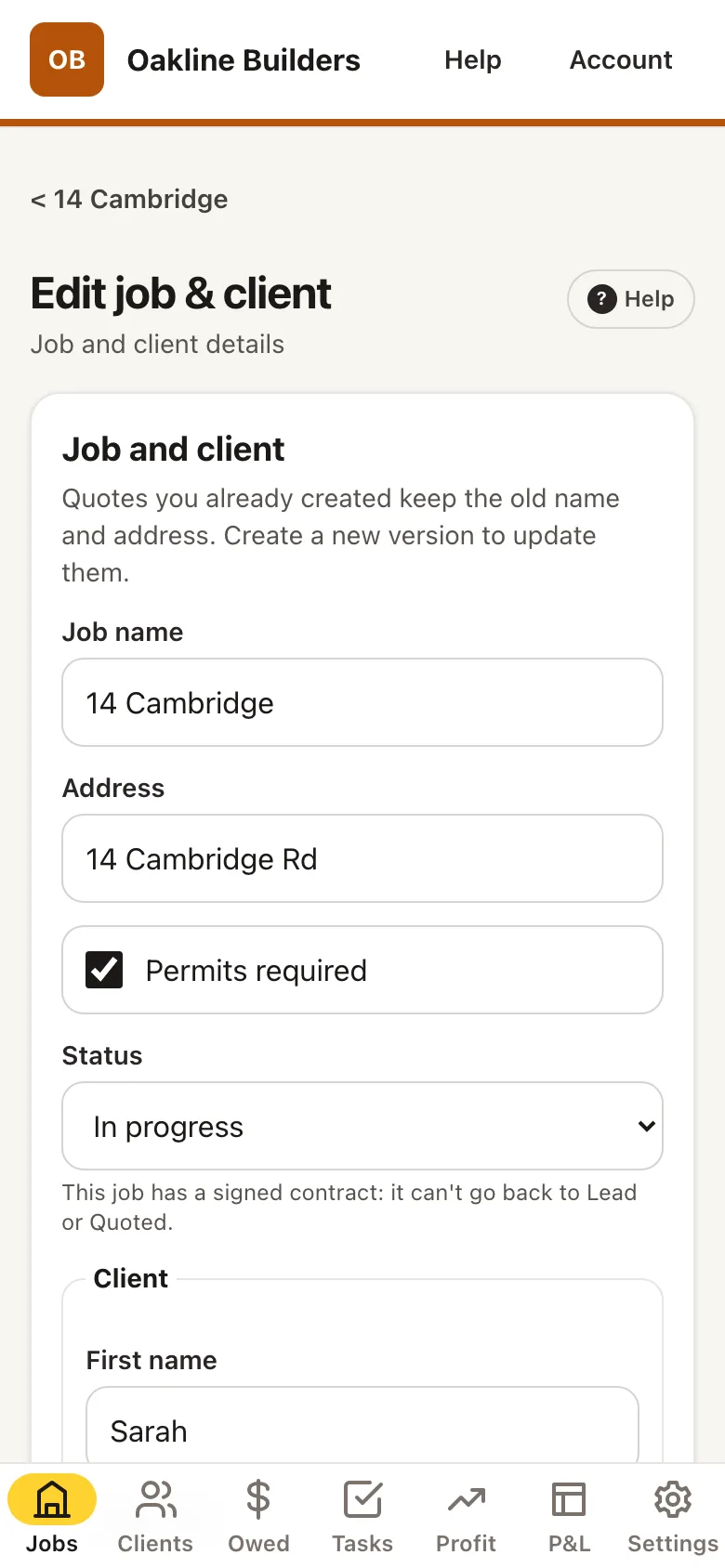
Some fields have hints worth knowing:
- Client Address: leave it blank if the client lives at the job address.
- Cell phone: US numbers, separated by commas.
- Email (optional): used when a text can't go out. Separate several with commas.
Status rules
The Status dropdown lists Lead, Quoted, In progress, Completed and Cancelled. After the client signs, Signed shows up as "Signed (client signed)".
- In progress and Completed are for jobs the client has signed.
- A job with a signed contract cannot go back to Lead or Quoted. The form says so under the field.
- Setting Cancelled here is not the same as the Client cancelled button. For a signed job, use the button or say it in chat. See cancel a job.
When you set a job to Completed, Nailed tells you which payment is now due.
The client page
Open the Clients tab and tap a client.
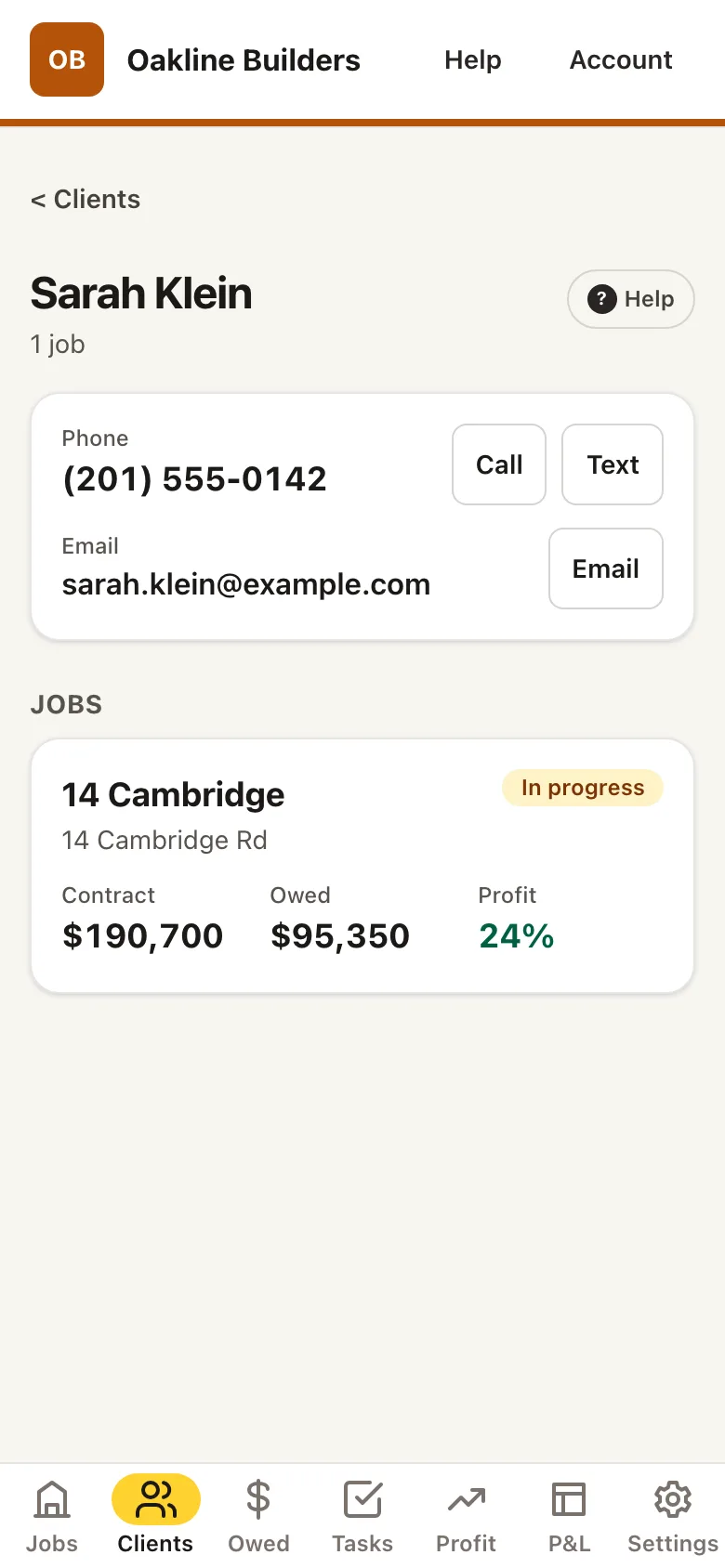
- The contact card shows each phone with Call and Text buttons, each email with an Email button, and the address if there is one.
- If the client replied STOP to a text, the card says "Replied STOP: we don't text this client."
- With no contact info, you see "No phone or email on file." Add some in Edit job & client.
- Under Jobs you see each of the client's jobs with Contract, Owed and Profit.
- A client with more than one job also gets a totals card: All contracts, Collected and Still owed.
The client page has no edit button. Use one of the client's jobs to change the details.
Common questions
Why does my old quote still show the wrong address?
A quote you already created keeps the name and address it had. Create a new version of the quote and it picks up the change.
Can I change a client's details from the Clients tab?
The client page is for looking and for tapping Call, Text or Email. To change anything, open one of the client's jobs and tap Edit job & client.
Can I move a signed job back to Lead or Quoted?
No. Once the contract is signed it cannot go back to Lead or Quoted. The form tells you this under Status.
What does Replied STOP mean on a client?
The client answered a text with STOP. Nailed does not text that client. The client page shows "Replied STOP: we don't text this client."
Can I use more than one phone or email for a client?
Yes. In the Cell phone and Email fields, separate several with commas.
Did this answer your question?