Clients and jobs
Read a job page: money, profit, payments and notes
See where a job stands: contract, collected, spent, projected profit, payments, quotes and notes. On the dashboard or by asking Nailed in chat.
Each job has a page with everything about it in one place. Open it to see where the money stands, or ask Nailed in chat.
The Jobs list
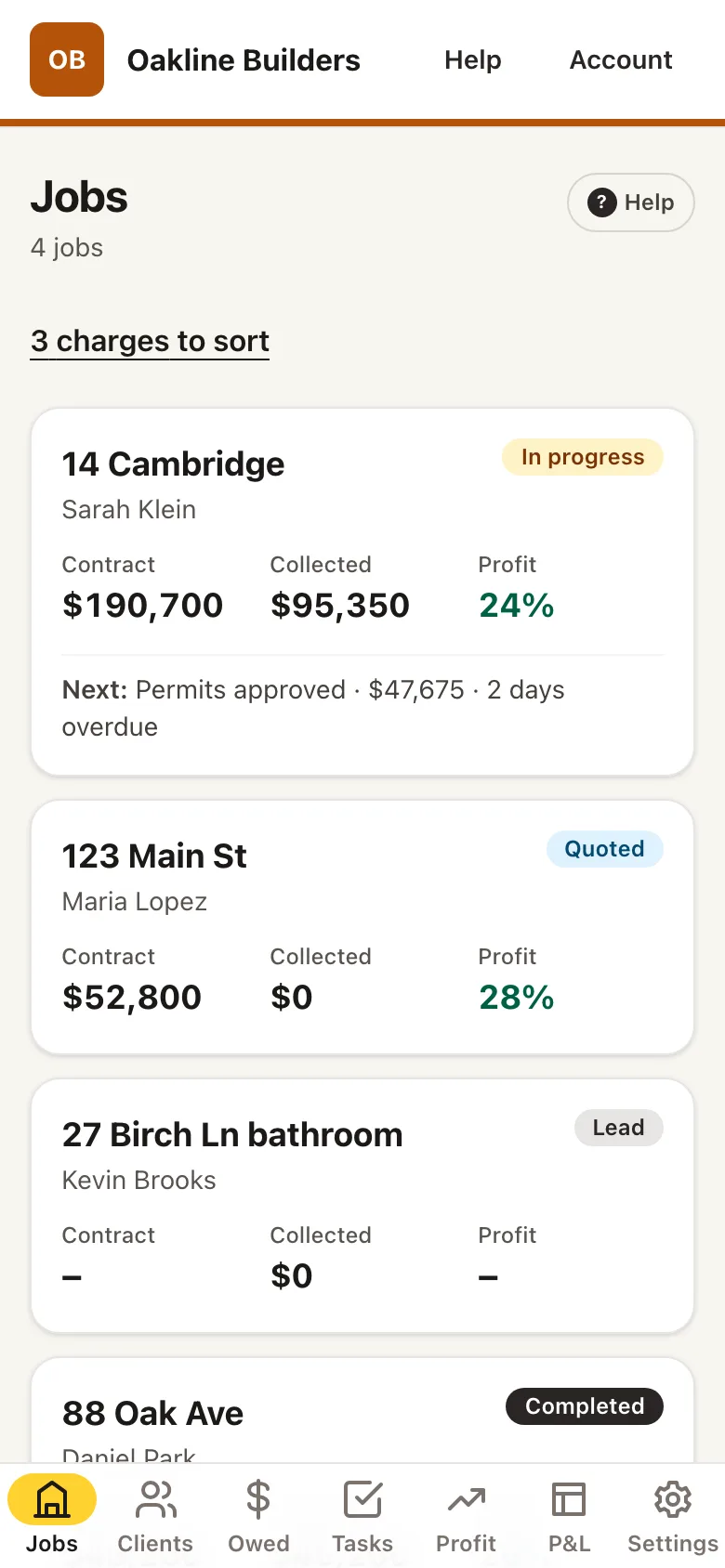
Open the Jobs tab. Every job is a card with the job name, the client and a status label. Three numbers sit on each card:
- Contract: what the client agreed to pay, or a dash if there is no quote yet.
- Collected: what you have received.
- Profit: a percent, "no costs yet", or a percent marked "so far" while costs are still coming in.
A line starting with Next shows the next payment, for example the installment and its amount, followed by "2 days overdue", "due now", a date or "when the milestone is hit". Tap a card to open the job.
Ask in chat
You do not need the dashboard for a quick check.
Today
Things you can say
- where are we with Cambridge
- how am I doing on Cambridge
- what jobs do I have
- who owes me money
A tour of the job page
Tap a job. From the top down:
Top and client card
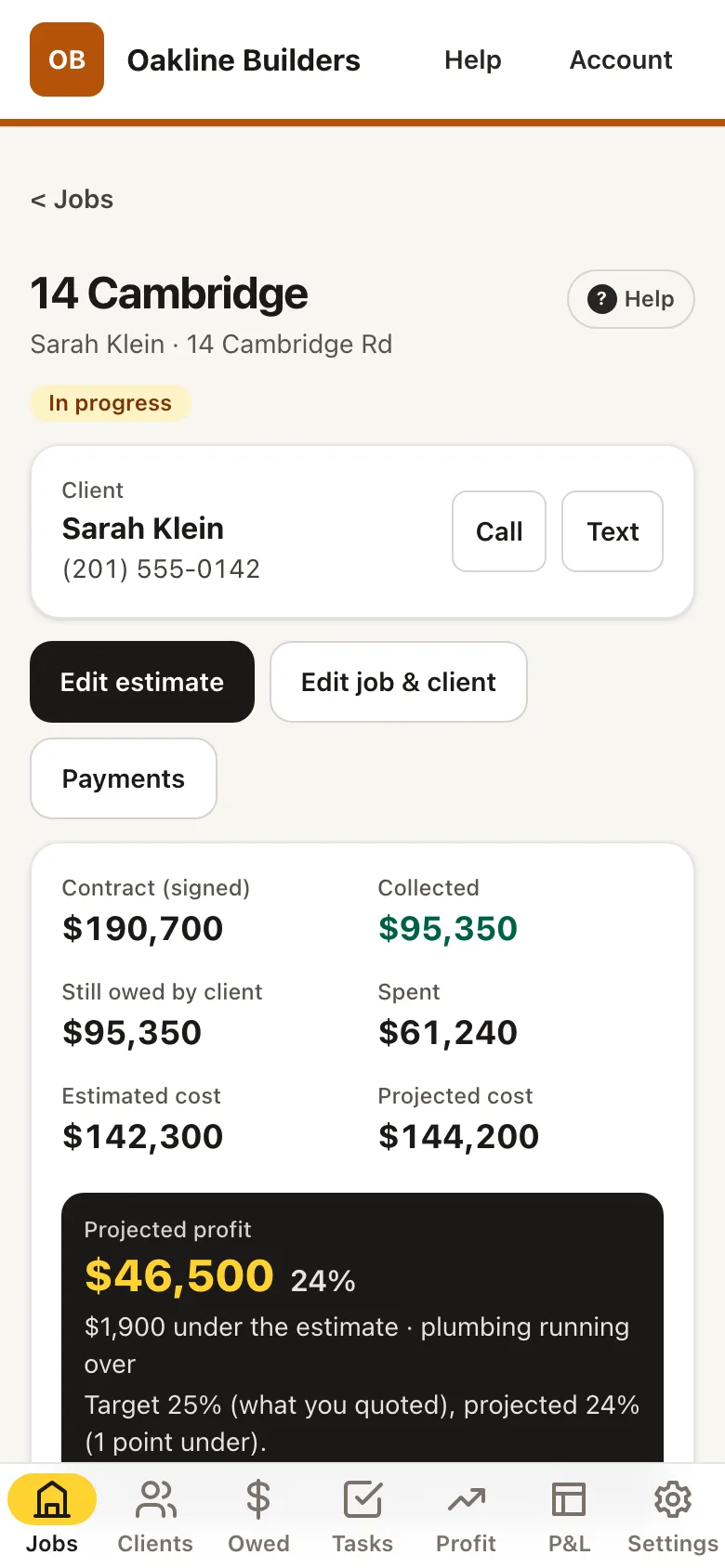
The job name, the client and address, and the status label. Below is the client with Call and Text buttons. As the owner you also see Edit estimate, Edit job & client and Payments.
Summary
Numbers for the job: Contract (signed) (or Quote before signing), Collected, Still owed by client, Spent, Estimated cost and Projected cost.
A dark box shows Projected profit in dollars and as a percent. Under it you may see how far under or over the estimate you are, and amber warnings when the numbers are rough.
Client job page
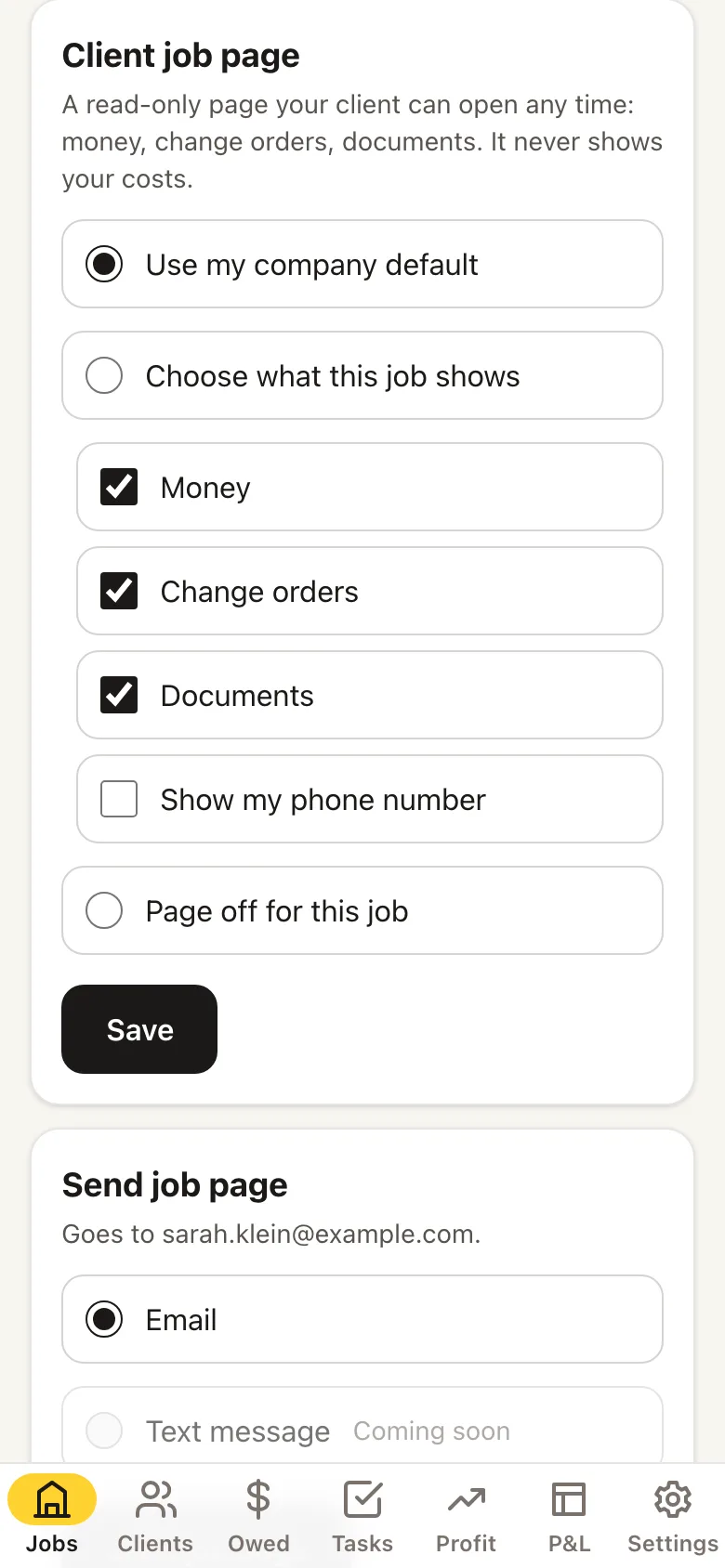
A card where you control the read-only page your client can open. Choose the company default, pick what this job shows (Money, Change orders, Documents, Show my phone number) or turn the page off for this job. You can email it to the client, copy your link, preview it, or make a new link. The old link then stops working. The page never shows your costs, and nothing reaches the client until you send it.
Profit target
Set a Target as a percent or in dollars and tap Save. Leave it empty and Nailed uses what the quote works out to. Profit heads-ups compare against this target.
Estimate vs actual
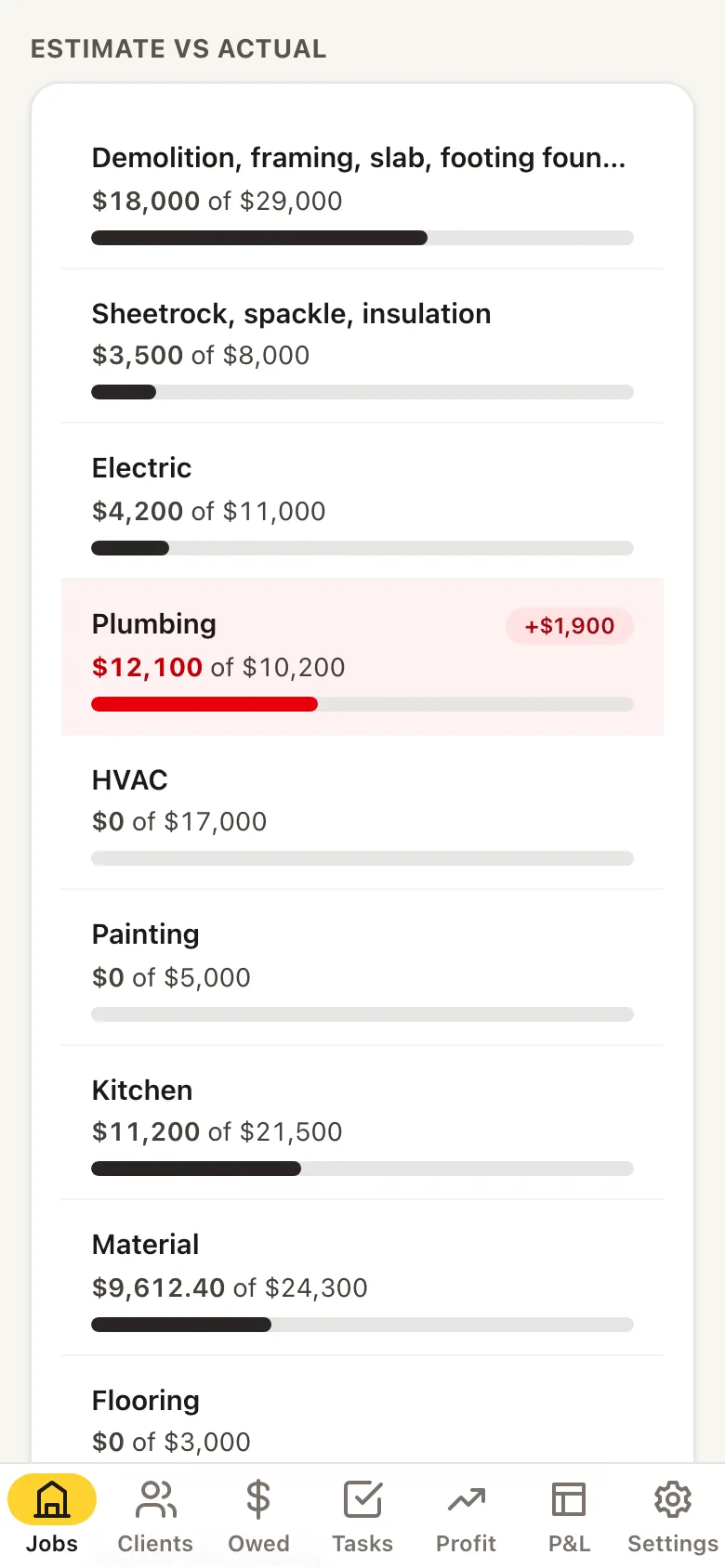
Each quote line with what you have spent on it against the estimate. A red "+$" shows a line running over. A "Not tied to a line" row holds spending that is not assigned yet.
Payments
Every installment with its label, due date, amount and a label: Paid, Overdue, Due or Upcoming. To record money, see log a payment.
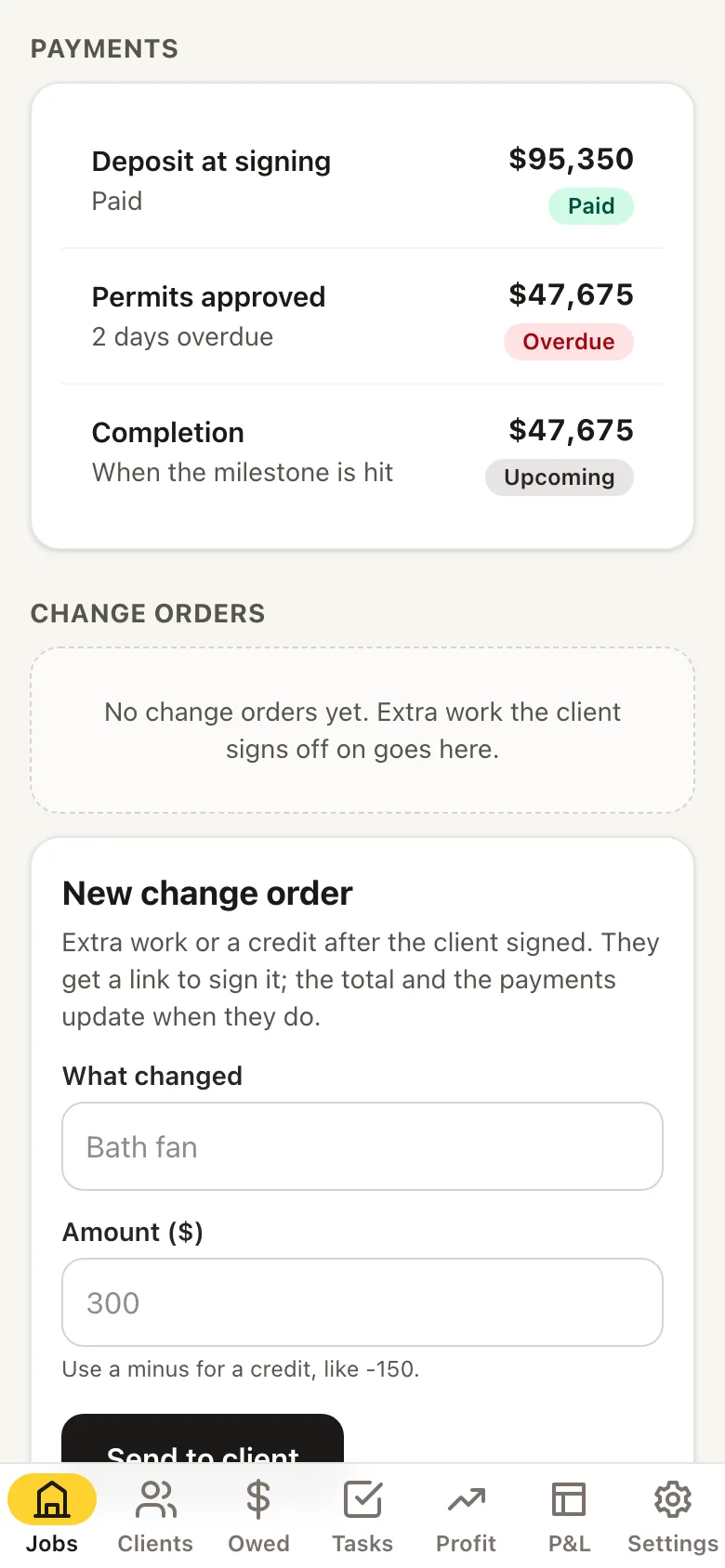
Change orders
Extra work the client signs off on, with the amount and whether it is signed, waiting or cancelled.
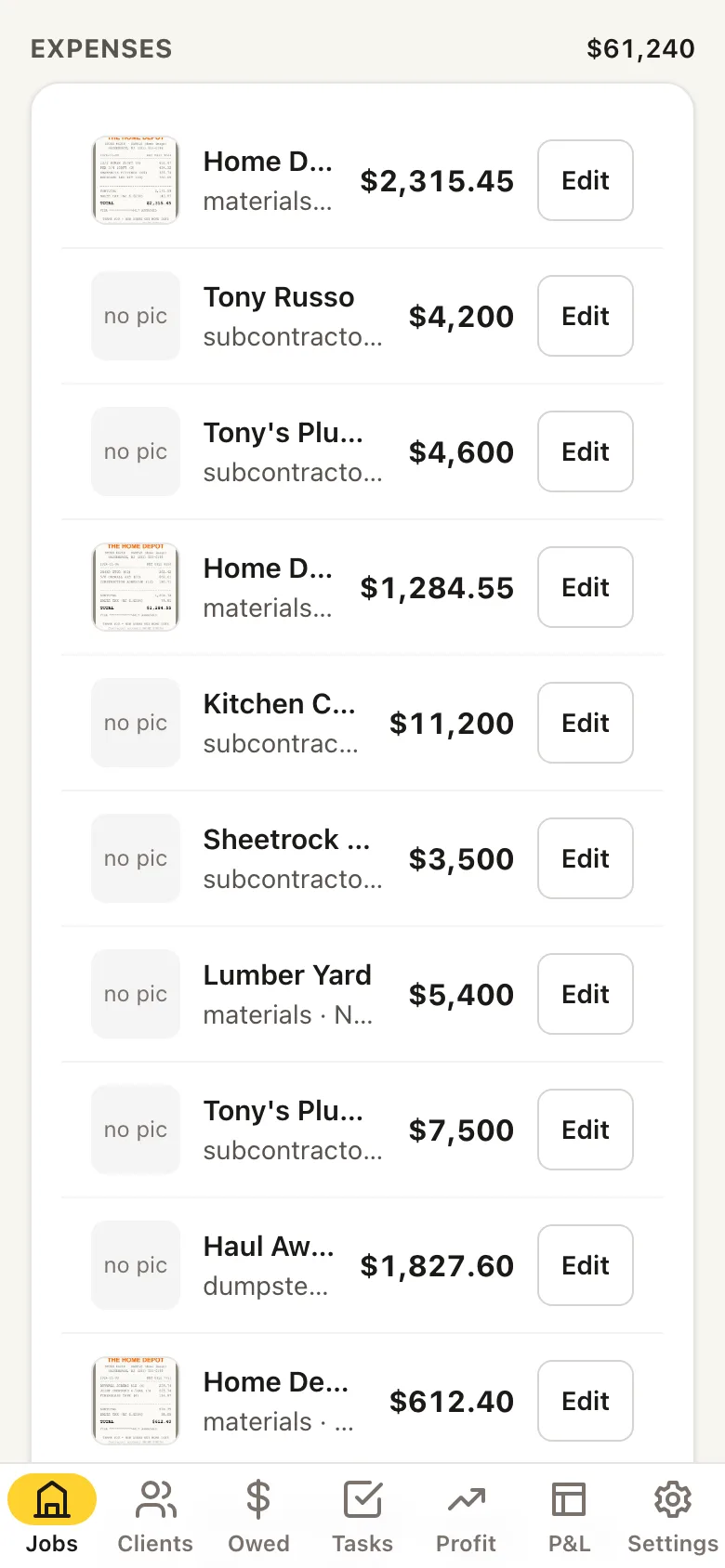
Expenses
Receipts and costs on the job, with a total. Tap Edit on one to fix the amount, vendor, category or estimate line.
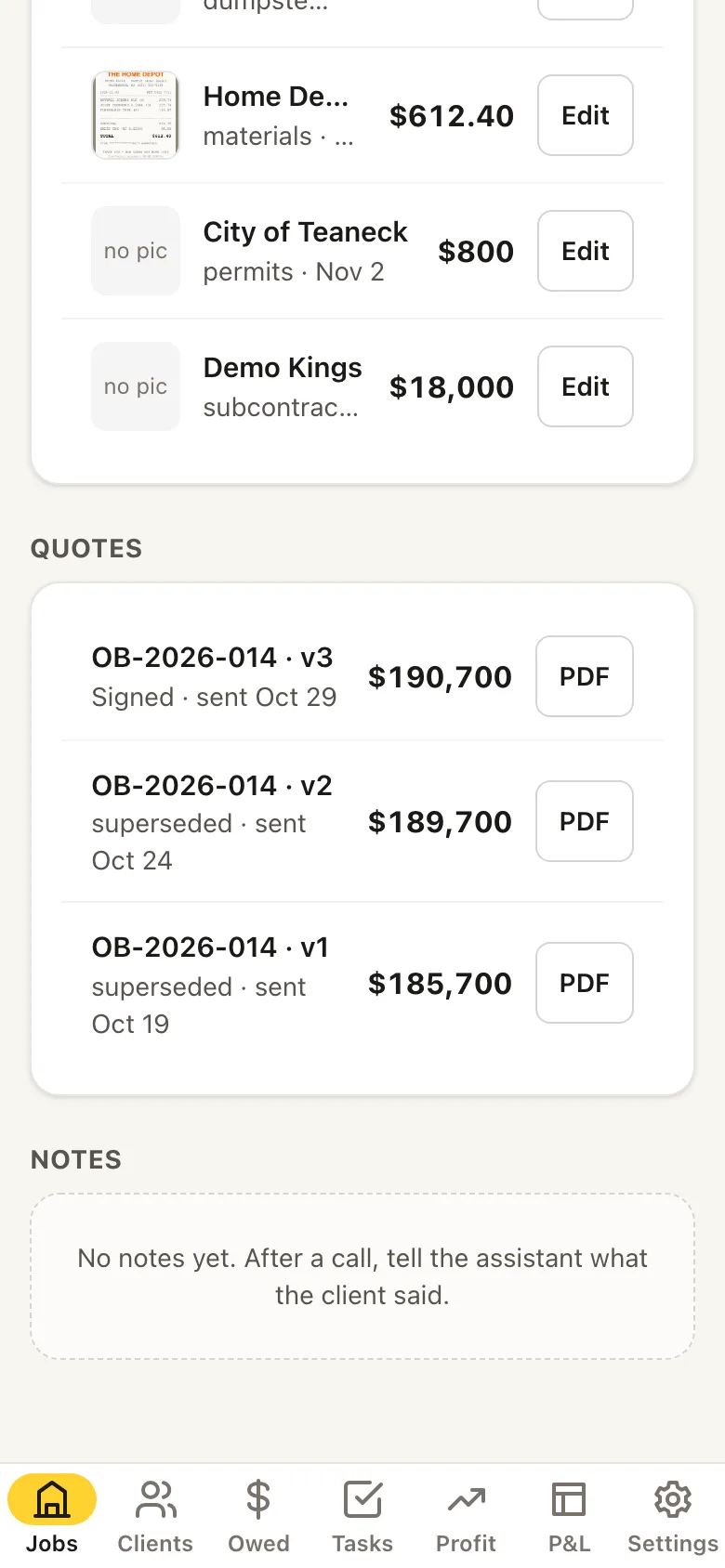
Quotes
Each quote version with its status, send date, total and a PDF link.
Notes
Private call notes. See notes and tasks.
Common questions
What does Projected profit mean?
It is the contract minus what the job is expected to cost, based on what you have logged so far. It moves as you log expenses.
Why does a job say "no costs yet" for profit?
You have not logged any expense on it and the quote has no cost estimates. Send a receipt photo or say "paid Mike 4200 Cambridge" and the number fills in.
Can my client see this page?
No. This page is yours and shows your costs. Your client gets a separate read-only job page that never shows costs, and only when you send it.
How do I get the same numbers in chat?
Ask "where are we with Cambridge" for status, who owes what and next steps, or "how am I doing on Cambridge" for contract, collected, spent and projected profit.
What is the Next line on a job card?
It is the next payment on the schedule, with its amount and whether it is overdue, due now, due on a date or due when a milestone is hit.
Did this answer your question?