Getting paid
Set a payment schedule: deposit, milestones, weekly
Split a job into a deposit, milestone payments, weekly or monthly payments and a final payment. Set it in WhatsApp or on the dashboard.
A payment schedule tells your client what they pay and when. Nailed prints it on the quote, makes each payment due at the right time, and sends the reminders. You set it once per job, or set a standard plan and forget about it.
What you can set
Each payment step is one of five kinds. Mix them however the job needs.
| Step | When it is due | Example |
|---|---|---|
| Deposit | When the client signs | 30% or $2,000 to start |
| Milestone | When you tell Nailed the milestone happened | 25% when permits are approved |
| Weekly | Every week (or every 2 weeks) from a start date | $1,500 a week starting Monday |
| Monthly | Every month from a start date | The rest over 6 months from Dec 1 |
| Completion | When you tell Nailed the job is done | Final 10% at walkthrough |
Each step is a percent, a dollar amount, or "the rest". Only one step can be "the rest".
- DepositAt signing$12,000
- Week 1Mon, Nov 17$3,000
- Week 2Mon, Nov 24$3,000
- Week 3Mon, Dec 1$3,000
- Week 4Mon, Dec 8$3,000
Set it in WhatsApp
Say how you want to be paid
Name the job and the split, the way you'd say it to your office. For example: Lopez kitchen: 50% upfront, rest weekly over 4 weeks starting Monday
Check the split
Nailed sends back each payment with its amount and date, worked out to the cent. You never do the math.
Confirm it
Reply with the number for Yes (on Telegram, tap the button). Nothing changes until you do.
Today
Payment plan for 123 Main St
- Deposit, at signing
- $12,000
- Week 1, Mon Nov 17
- $3,000
- Week 2, Mon Nov 24
- $3,000
- Week 3, Mon Dec 1
- $3,000
- Week 4, Mon Dec 8
- $3,000
Reply with a number:
- Yes
- Cancel
Things you can say
- 50% deposit, 25% when permits are approved, 25% at the end
- $2,000 to start, the rest at completion
- 10k down, then the rest monthly over 6 months starting Dec 1
- 30% down, then $1,500 a week starting Nov 17
- every 2 weeks instead of weekly
Set it on the dashboard
The dashboard handles deposit, milestone and completion steps in percents. For weekly or monthly payments, use the chat.
Open the job's payments
Go to DashboardJobsyour jobPayments.
Set each payment
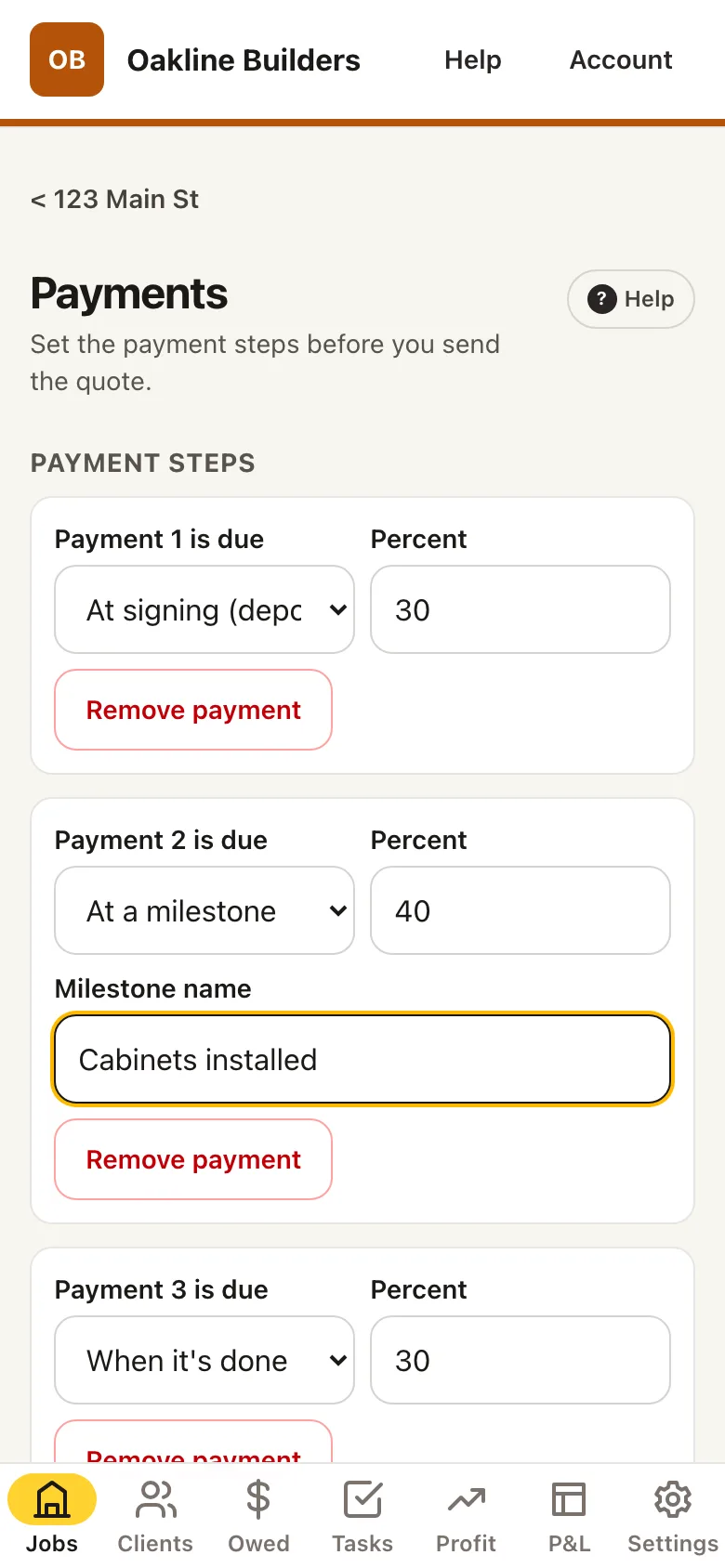
Under Payment steps, pick when each payment is due (At signing (deposit), At a milestone or When it's done) and its percent. Tap + Add a payment for more, up to 8.
Check the total and save
The line under the list shows what it adds up to. It must be 100%. Tap Save payment steps, or Use my standard steps to apply your company plan.
Set a standard plan for every job
Most contractors use the same split on most jobs. Save it once:
- Go to DashboardSettingsDeposit rules.
- Tick Use a standard payment plan under Jobs that need permits, Other jobs, or both.
- Enter the deposit %, a milestone and its % if you use one, and the completion %. Or a flat deposit in dollars, with the rest at completion.
- Tap Save.
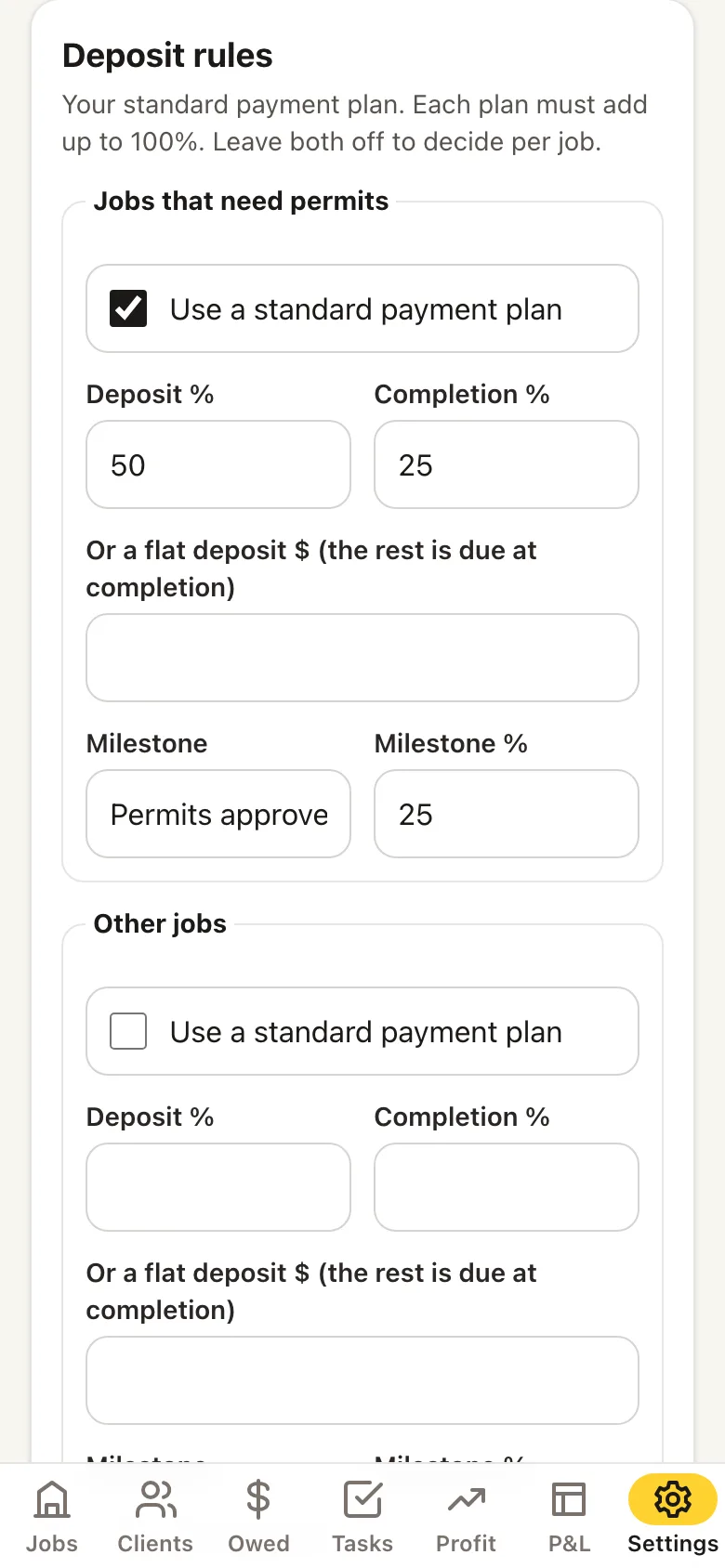
You can also say a simple one in chat: my standard is 30% down, the rest at the end. A milestone with its own name, like "Permits approved", is easiest to set here on the dashboard. A plan you set on one job always wins over the standard plan.
How payments become due
- Client signsDeposit is due
- You say "permits approved"Milestone payment is due
- Weekly dates arriveEach week is due on its day
- You say "job's done"Final payment is due
When a milestone payment comes due, Nailed asks if you want to send the client a note now, tomorrow at 9, or skip it. Weekly and monthly payments come due on their own. Reminders then follow the usual rhythm, see payment reminders.
Changing the plan later
Before the client signs, just say the new plan and confirm it. It replaces the draft.
After the client signs, you can still change it by chat. Payments you already received stay exactly as they are. The new plan replaces only what is still unpaid, and Nailed reminds you to tell the client.
Common questions
Can I do 50% upfront and the rest weekly?
Yes. Say "50% upfront, the rest weekly over 4 weeks starting Monday" or "50% down, then $1,500 a week starting Nov 17." Nailed needs a start date and either the number of weekly payments or the weekly amount. With a weekly amount, the last payment is whatever is left.
Can I change the schedule after the client signed?
Yes, by chat. Payments already received stay as they are, and the new plan replaces only the unpaid ones. Nailed reminds you to let the client know. If a payment is half paid, settle it first.
What happens if the amounts don't add up to the total?
Nailed refuses the plan and tells you why. Percents must add up to 100, or one step must be "the rest". Splits are exact to the cent, with any leftover cent on the last payment.
Do my clients pay online?
No. Nailed tracks payments, it does not process them. Your Zelle and check details print on the quote and in reminders, and you log each payment when it comes in.
Can I set a standard plan for every job?
Yes. In Settings, under Deposit rules, set one plan for jobs that need permits and one for the rest. New quotes use it unless you set a different plan for that job.
Did this answer your question?