Estimates and quotes
Add your logo, license and terms to quotes
Put your logo, brand color, license, insurance and your own policy on every quote. Set it in Settings or send a photo of your logo in chat.
Your quote is the first thing a client sees from your company. Put your logo, license and your own terms on it once, and every new quote uses them.
Logo and brand color
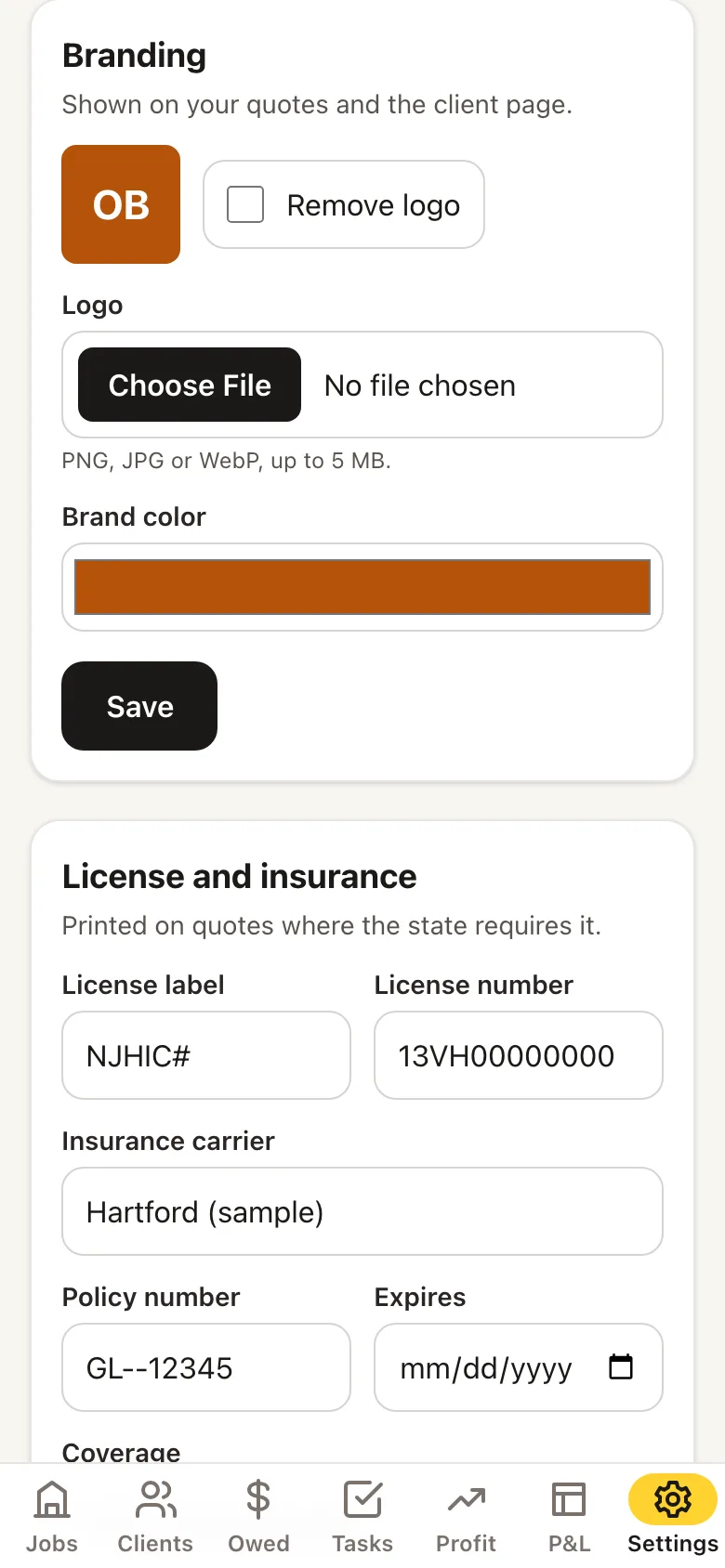
Open Branding
Go to DashboardSettingsBranding.
Upload your logo
Pick a PNG, JPG or WebP file, up to 5 MB. Tick Remove logo if you want to take the current one off.
Pick a color and save
Choose your Brand color with the picker, then tap Save. The color is used for the company name, the lines and the total bar on the PDF, and for the initials square when there is no logo.
You can skip the dashboard. Send a photo of your logo in chat and say it's your logo.
Today
Your logo and color also show on the page your client opens, see what your client sees.
License and insurance
Under DashboardSettingsLicense and insurance fill in:
- License label (for example NJHIC#) and License number
- Insurance carrier, Policy number, Expires and Coverage (for example "$1M general liability")
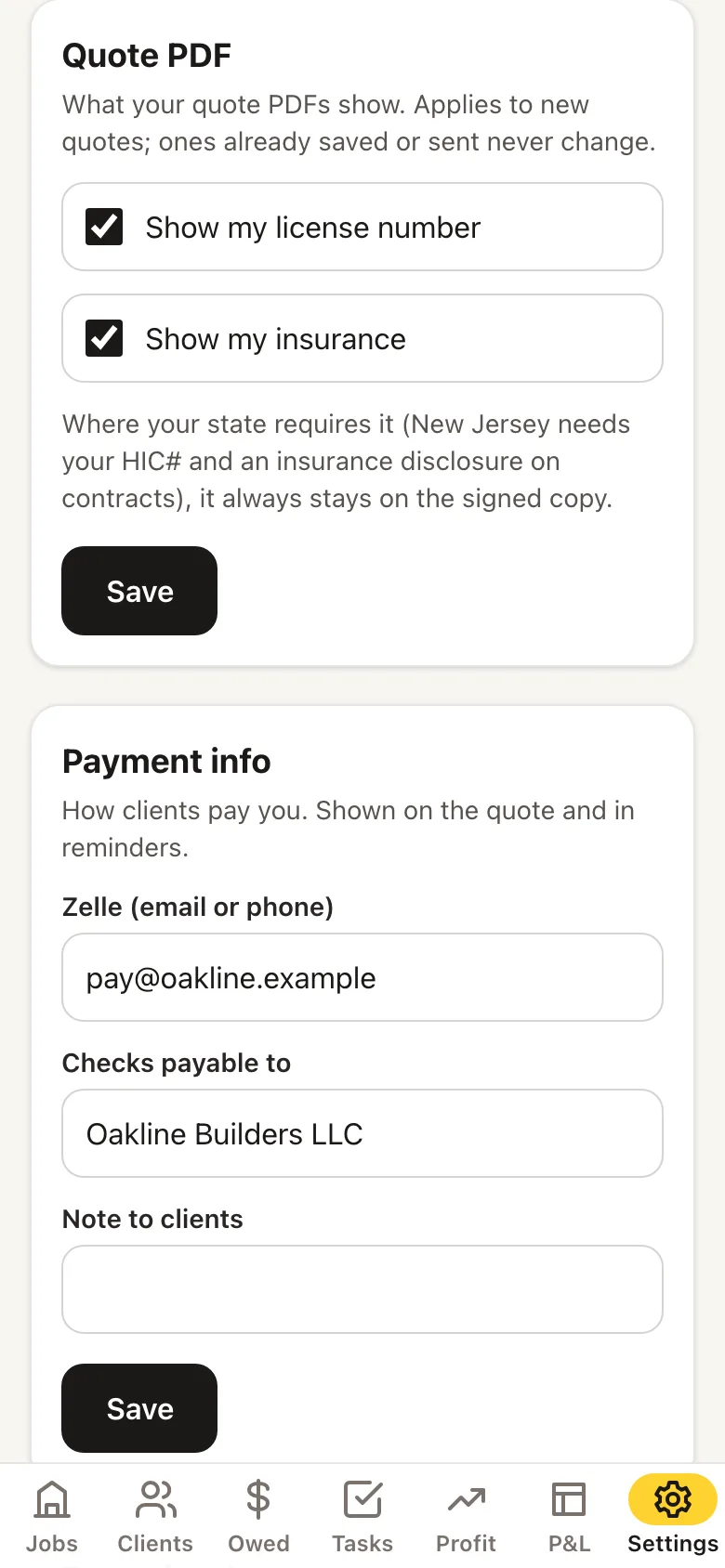
Then choose what prints. Under DashboardSettingsQuote PDF tick Show my license number and Show my insurance. This applies to new quotes. Quotes already saved or sent never change.
Your policy and terms
The policy is the page of terms your client accepts before signing. They must scroll to the end and tick one box.
Open Policy
Go to DashboardSettingsPolicy. You see the current version, how many sections it has, and a Read the current text link.
Paste your text
Under New policy version, give it a Title (the default is "Project Policy") and paste your text in Policy text. Separate sections with a blank line. A short first line becomes the section title.
Save
Tap Save as new version. New quotes use it.
Each save is a new version. A quote keeps the version the client signed, so changing your terms never rewrites an old contract.
No policy yet? The default policy is added with your first quote. Replace it whenever you like.
Payment info on the quote
The quote prints a How to pay block with your Zelle and who checks are payable to. Set those under DashboardSettingsPayment info. More in how clients pay you.
What the PDF looks like
- LetterheadLogo, company, license, insurance, contact
- ESTIMATENumber, version, valid until
- Scope and pricingLines and the total
- Payment schedule and how to payThen notes
- TermsYour policy at the end
The header shows the quote number and version, the date and "Valid until". Optional items, rates and open amounts get their own sections after the total.
Common questions
What logo file can I use?
PNG, JPG or WebP, up to 5 MB. You can upload it in Settings under Branding or send a photo of your logo in chat.
Can I hide my license number on the quote?
Yes, for new quotes. Under Settings, Quote PDF, untick Show my license number or Show my insurance. Where your state requires the disclosure, such as New Jersey, it stays on the signed copy.
If I change my policy, do old quotes change?
No. Each save makes a new version. Past quotes keep the version the client signed.
What if I don't have a policy?
Nailed adds a default policy with your first quote. You can replace it any time with your own text.
Do I need a logo?
No. Without one, the quote shows a square in your brand color with your initials, next to your company name.
Did this answer your question?