Profit and reports
See how much profit a job is making
See projected profit for every job on the Profit tab, set a profit target, and get a heads-up when a job slips. Ask in chat or check the job page.
You don't need to wait until a job is over to find out if it paid. Nailed shows projected profit from the contract and the costs you have logged. The math is done in code, exact to the cent.
Check it on the dashboard
The Profit tab shows Profit by job. Each signed job has its projected profit, margin, contract, amount spent and how many lines are running over.
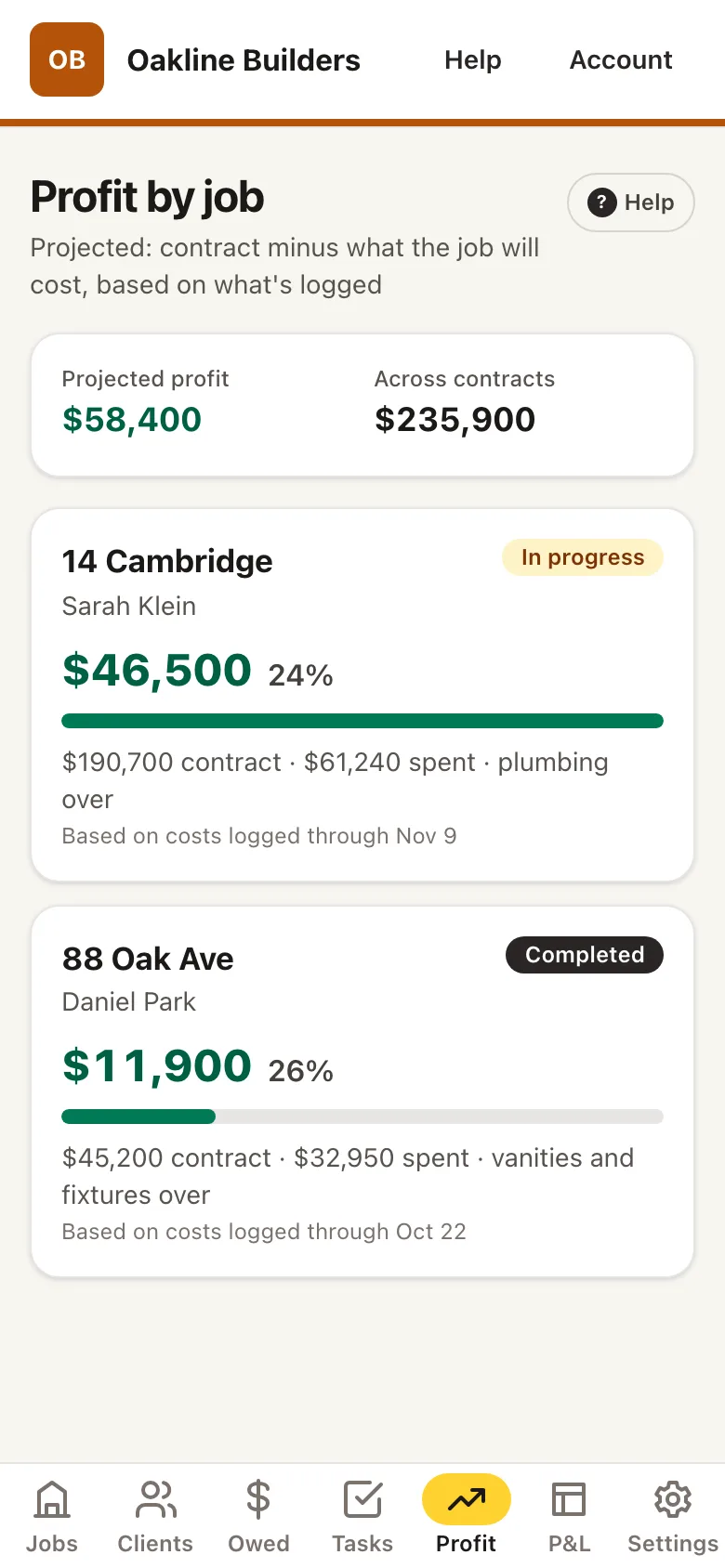
Projected profit means the contract minus what the job will cost, based on what's logged. A job shows up here once its quote is signed.
Open a job from DashboardJobsyour job for more:
- Projected profit in the dark box, with the margin.
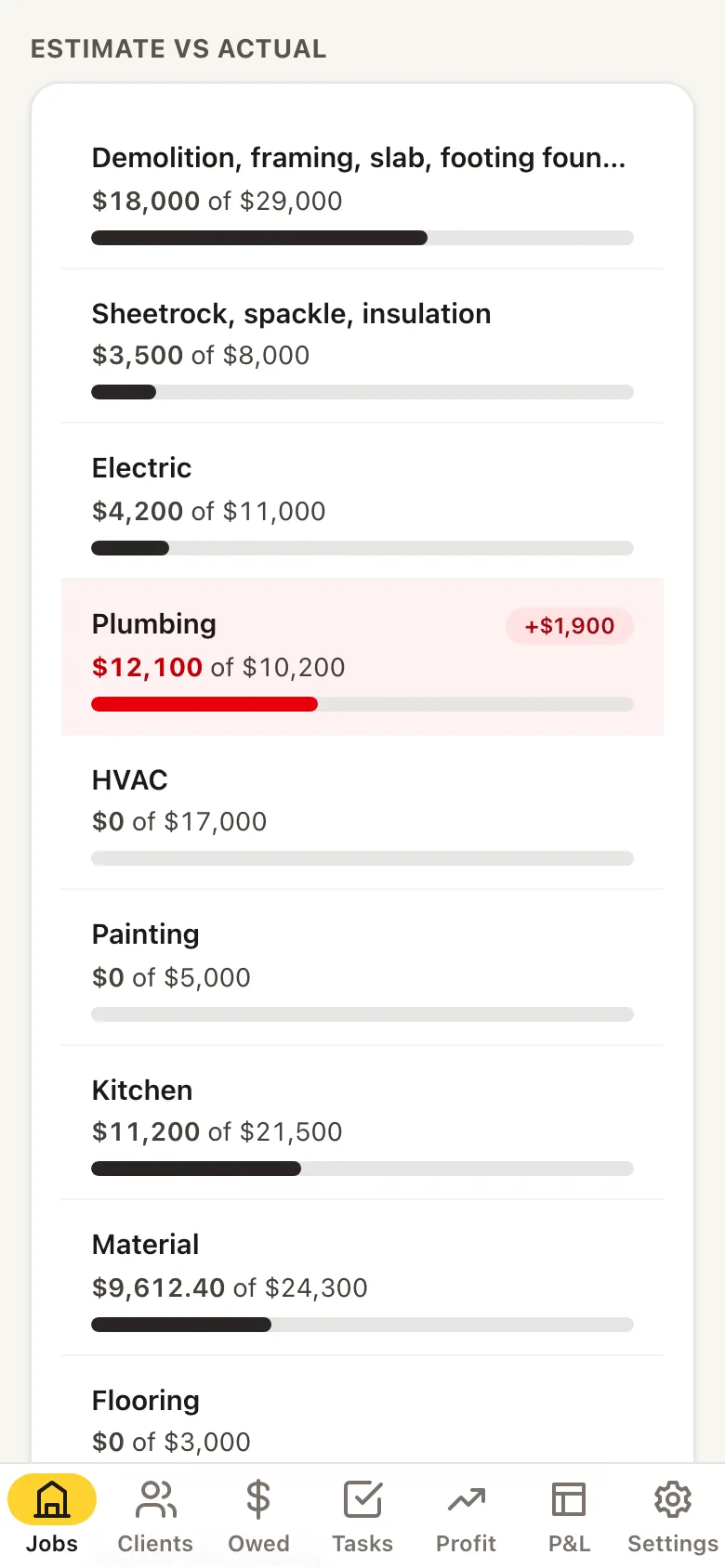
- Estimate vs actual, line by line. A red pill like "+$400" marks a line running over.
- A line saying what the numbers are based on, and warnings such as a missing cost estimate.
How projected cost works
Each estimate line counts at the higher of two numbers: what you estimated it would cost, or what you have spent on it so far. Say you estimated $3,000 for plumbing and spent $2,500. Nailed still counts $3,000. Spent $3,400? It counts $3,400.
That way a saving on one line never hides an overrun on another. Money you spent that isn't tied to a line uses up any cost estimate not tied to a line first, then the unspent line estimates.
Ask in chat
Things you can say
- how am I doing on Cambridge
- am I making money on Oak Ave
- which jobs are running over
You get the contract, what you collected, what you spent, and projected profit.
Set a profit target
Open the job
Go to DashboardJobsyour job.
Find Profit target
Under Target, enter a number and choose % or $ in In.
Save
Tap Save. Leave the field empty to use what the quote works out to.
Get a heads-up when a job slips
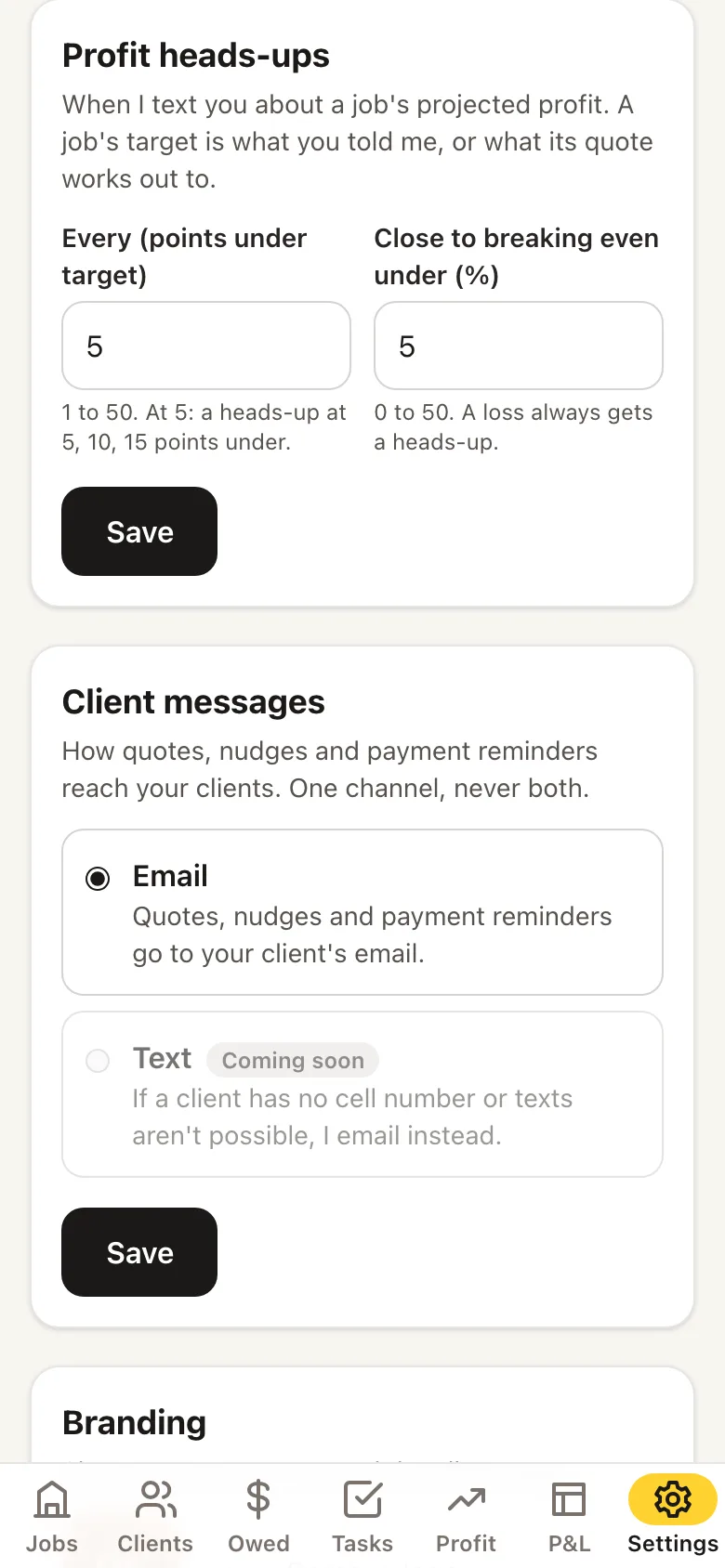
Nailed texts you when a job's projected profit falls under its target. Set how often in DashboardSettingsProfit heads-ups.
| Setting | What it does |
|---|---|
| Every (points under target) | Default 5. At 5 you hear at 5, 10 and 15 points under target. |
| Close to breaking even under (%) | A heads-up when the margin gets this low. |
A loss always gets a heads-up.
Costs come from logged expenses and sorted bank charges. For the whole business, see the monthly P&L.
Common questions
Why don't I see profit on a job?
The Profit tab shows jobs once a quote is signed. Before that, the job page uses the draft quote and warns you the contract is unsigned.
What is projected cost?
It is what Nailed expects the job to cost in the end. Each estimate line counts at the higher of its estimated cost and what you have actually spent on it, so a saving on one line doesn't hide an overrun on another.
How do I get a real projection?
Add your own cost to each line on the estimate. Without a cost estimate, projected cost is just what you have spent so far, so profit looks great early on.
How does the profit target work?
On the job page, enter a Target as a percent or a dollar amount. Leave it empty to use the margin your quote works out to.
How often will Nailed warn me?
By default every 5 points under target, and always when a job is close to breaking even or losing money. Change it in Settings under Profit heads-ups.
Did this answer your question?