Estimates and quotes
Add a change order to a signed job
Add extra work or a credit to a signed job. Your client signs it, and the contract total and payments update to the cent.
The client signed, then asked for a bath fan. A change order puts that on paper. The client signs it, the contract total moves, and the payments follow.
Add one in chat
Say what changed
Name the job and the amount. Extra work is a plain number. A credit says so: credit Sarah 150 for the closet
Check the card
Nailed shows the change and the amount. Nothing is sent yet.
Send it
Reply with the number for Send (on Telegram, tap it). Your client gets an email with a link to sign.
Today
Change order for 123 Main St
- Bath fan
- +$300
Reply with a number:
- Send
- Cancel
Things you can say
- add a bath fan 300 to Lopez
- credit Sarah 150 for the closet
- Daniel wants an extra outlet, 180
What your client does
They open the link and read the change. They type their name and tick the e-sign consent box. That is all. It is the same kind of page as the quote, see what your client sees. There is no new cancellation window.
What happens when they sign
You get a message like "signed change order #1: +$300. Contract is now $24,300". The client gets the signed copy by email.
- Contract updatesTotal moves by the change
- Payments followUnpaid payments only
- You get a messageNew contract total
| Change | Where the money lands |
|---|---|
| Added work | On the next unpaid payment, or a new "Change order #n" payment due now |
| Credit | Comes off the last unpaid payments |
| Credit bigger than what is unpaid | Refused |
| Money already paid | Never changed |
On the dashboard
Open the job. Change orders appear in their own section once the job is signed.
Open the section
Go to DashboardJobsyour job and scroll to Change orders.
Fill in the form
Under New change order, type What changed (for example "Bath fan") and Amount ($). Use a minus for a credit, like -150.
Send it
Tap Send to client.
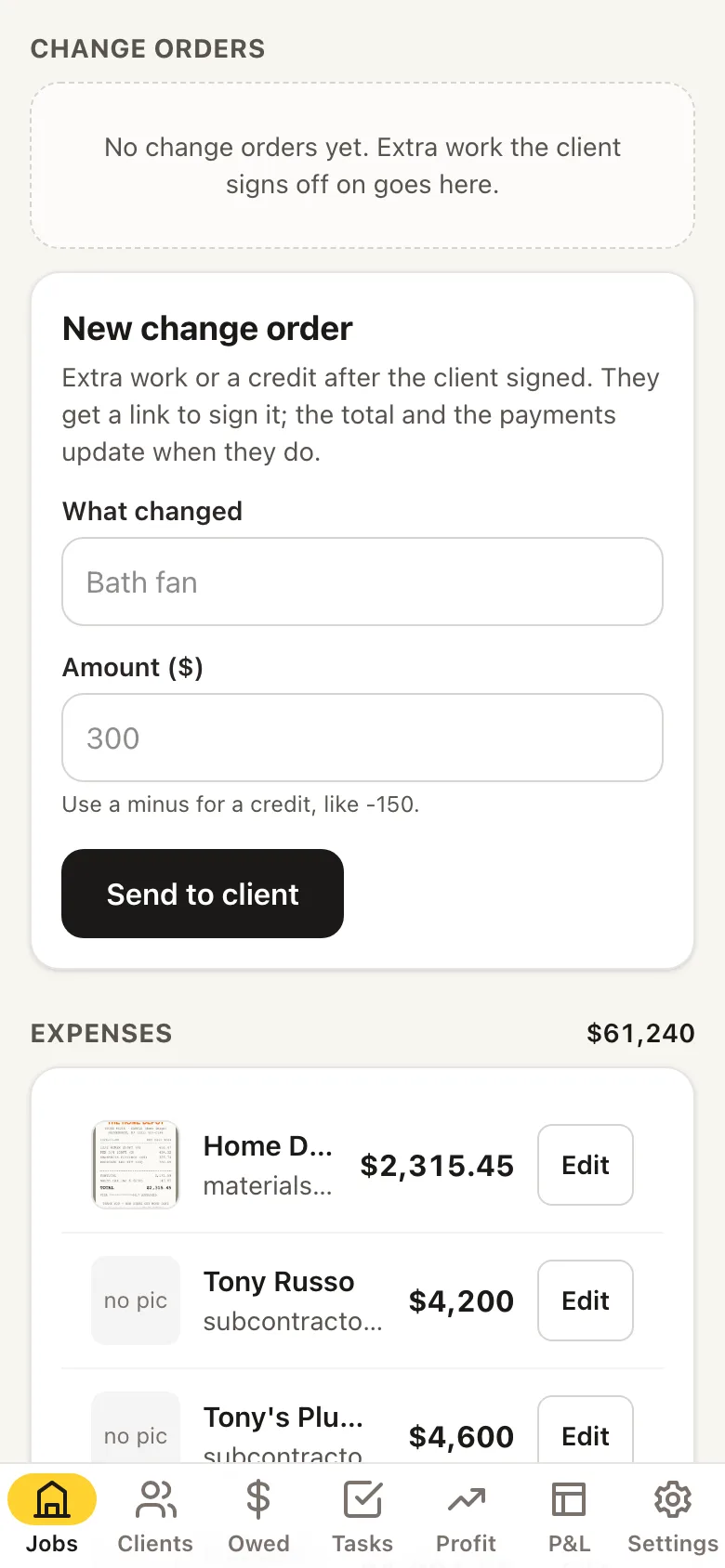
Each row shows the number, the title, the amount with a plus or minus, and where it stands: Not sent yet, Waiting for the client, Signed, or Cancelled. A PDF link opens the document. Tap Cancel on a change order that is still unsigned to pull it back.
Reminders
If a change order has been out for more than 2 days and is still unsigned, your morning brief mentions it. See daily messages.
Common questions
Can I use a change order on a job that is not signed yet?
No. Change orders are for signed jobs only. Before the client signs, change the quote itself.
Does the client get a new cancellation window?
No. Signing a change order does not start a new cancellation window.
What happens to payments the client already made?
They are never touched. Added work goes on the next unpaid payment, or becomes a new payment due now. A credit comes off the last unpaid payments.
What if my credit is bigger than what is left to pay?
Nailed refuses it. A credit can't be more than the unpaid part of the contract.
Can I cancel a change order I sent?
Yes, while it is unsigned. Tap Cancel next to it on the job page in the dashboard.
Did this answer your question?