Settings and account
Settings: what each section does
A map of every section on the Settings page, in order, with what it controls and where to read more. Most can also be changed by chat.
Settings is the last tab in the bottom bar. It holds how your assistant talks to you, what your clients see, and how you get paid. Every section has its own Save button.
The sections, top to bottom
| Section | What it does | Read more |
|---|---|---|
| Assistant | Assistant name, Morning brief at, Week's wrap on, weekends, and Quiet from / Quiet until | Daily messages |
| Bank questions | How Nailed asks about new card charges, and the smallest charge worth asking about | Sort bank charges |
| Client job page | Whether clients can have a read-only page for their job, and what it shows | What your client sees |
| Bank & cards | Connect your bank or cards | Connect your bank |
| Profit heads-ups | When Nailed texts you that a job's projected profit is slipping | Job profit |
| Client messages | How quotes, nudges and payment reminders reach clients: Email, or Text (Coming soon) | Payment reminders |
| Branding | Logo and brand color | Logo, license and terms |
| License and insurance | License label and number, carrier, policy number, expiry, coverage | Logo, license and terms |
| Quote PDF | Show or hide your license and insurance on new quotes | Logo, license and terms |
| Payment info | Zelle, who checks are payable to, a note to clients | How clients pay you |
| Deposit rules | Your standard payment plan for jobs with permits and without | Payment schedules |
| Policy | The terms your client accepts before signing | Logo, license and terms |
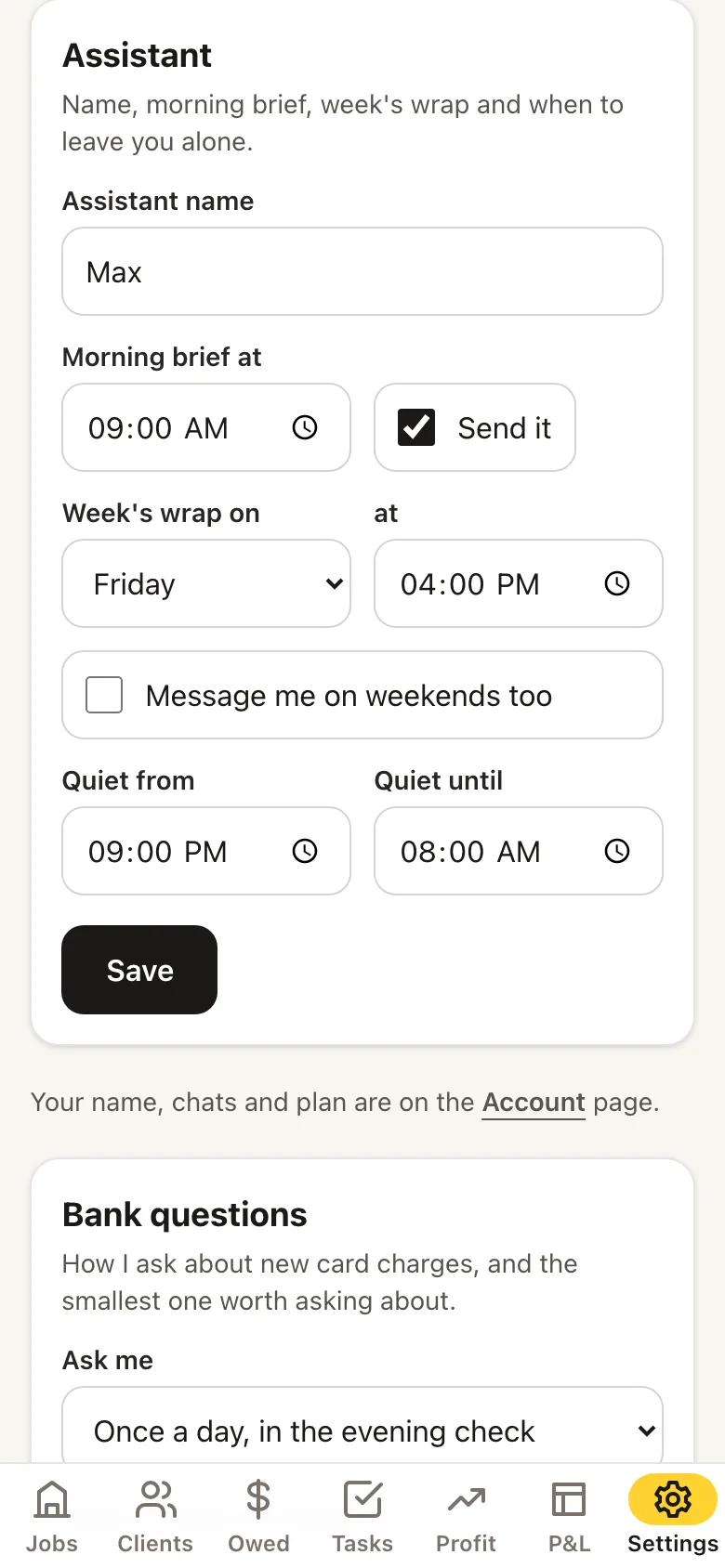
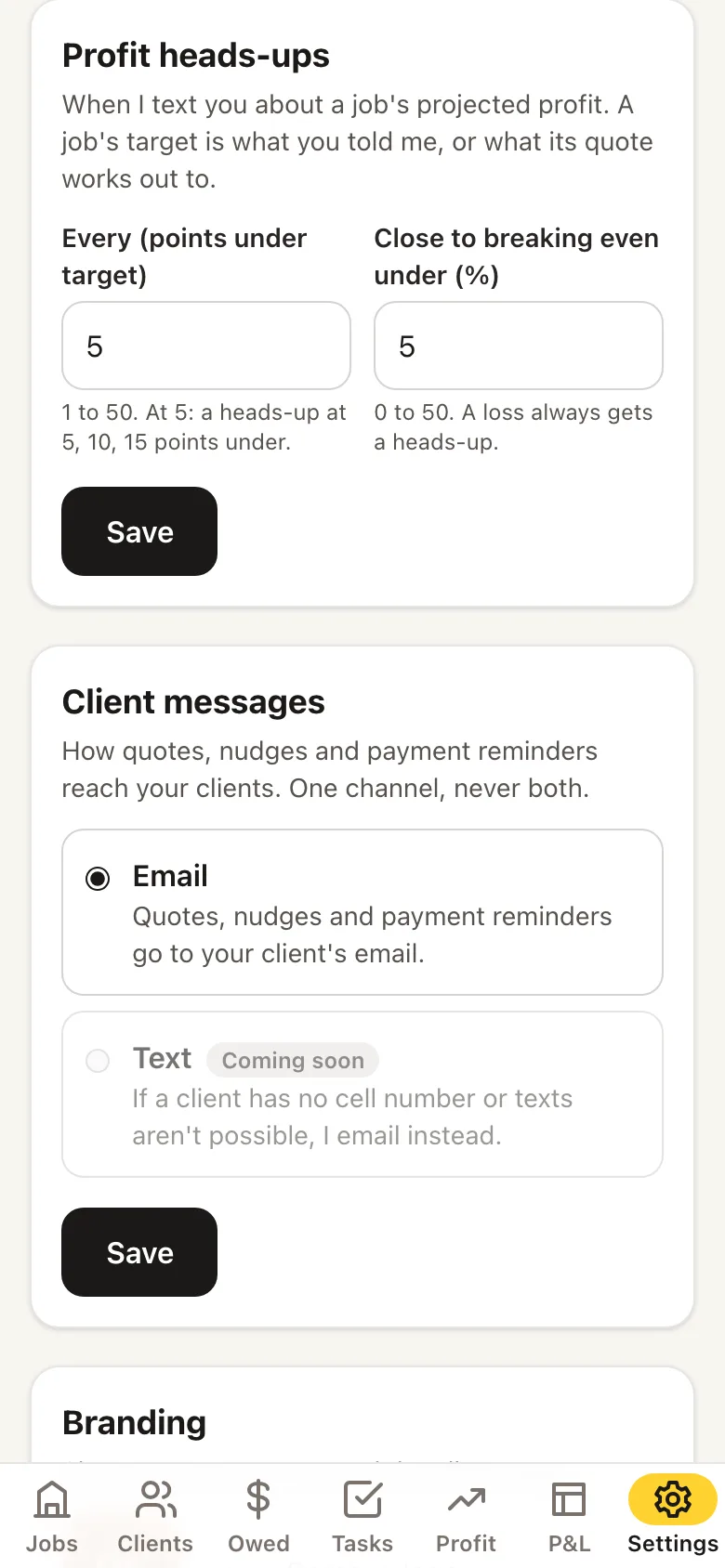
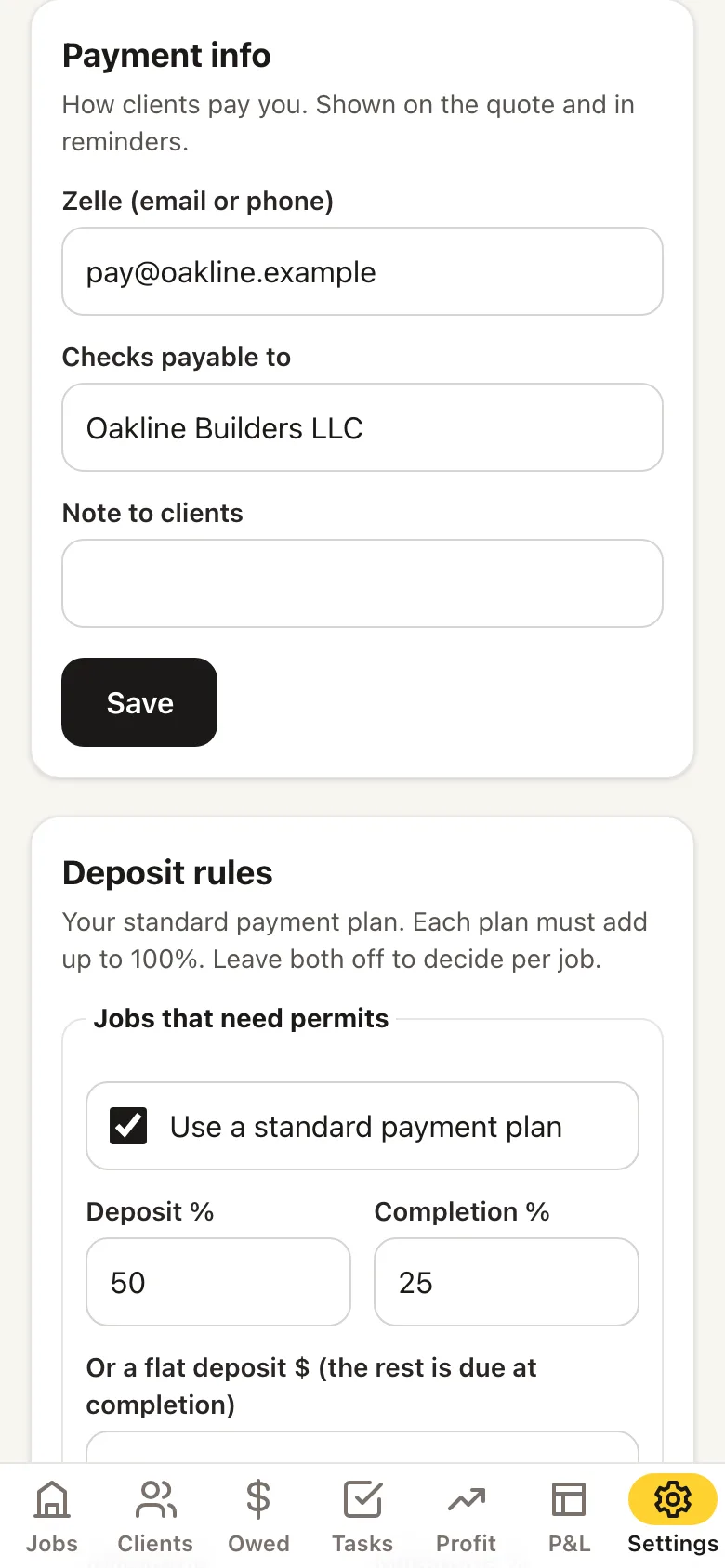
A line under Assistant points to the Account page: your name, chats and plan live there, see account and billing.
Change a setting on the dashboard
Open Settings
Tap Settings in the bottom bar.
Find the section and edit it
Each section is its own form. Change what you need.
Save that section
Tap Save in the same section. It shows "Saving..." and then a status. Other sections are not saved by it.
Change a setting by chat
Most of these have a chat version. Say it the way you would tell your office.
Today
Change your Zelle?
- Zelle
- 201-555-0142
Reply with a number:
- Yes
- Cancel
Things you can say
- brief at 7
- change my Zelle
- make my standard 30% down, the rest at the end
- email my clients, not text
- ask me about each bank charge as it comes in
Assistant preferences, like the brief time, save at once. Changes to money details or your identity (Zelle, payee, deposit plan, company profile) show a card first, and nothing is saved until you confirm it.
What does not live here
Your name, email, phone and plan are on the Account page. Clients and jobs are created by chat and edited on each job's page. See edit client and job details.
Common questions
Who can change settings?
Only the account owner. Other people on the account can look at the page but every Save is refused.
Can I change settings by chat instead?
Mostly, yes. Say "change my Zelle" or "brief at 7" and Nailed updates it. Changes to money details or your identity show a card first, and nothing is saved until you confirm. Assistant preferences save right away.
Can I turn on texting for my clients?
Not yet. Under Client messages, Text shows Coming soon, so quotes and reminders go by email. If a client has only a phone number, you get a tap-to-text link.
Where do my name, email and plan live?
On the Account page, linked in the header. See the account and billing article.
Why don't I see Bank questions or Bank & cards?
Those two sections only show for the owner, and only when bank features are turned on for your account.
Did this answer your question?